

Reports
Export console data to a file: seven reports, three formats, one period.
On this page
This screen exports your data to a file: inventory, lifecycle, cloning, thefts, verifications, gray-market alerts, API usage. You pick a report, a period and a format, then the file downloads. This is the function sold under the name exports, so it is reserved for the plans that include it.
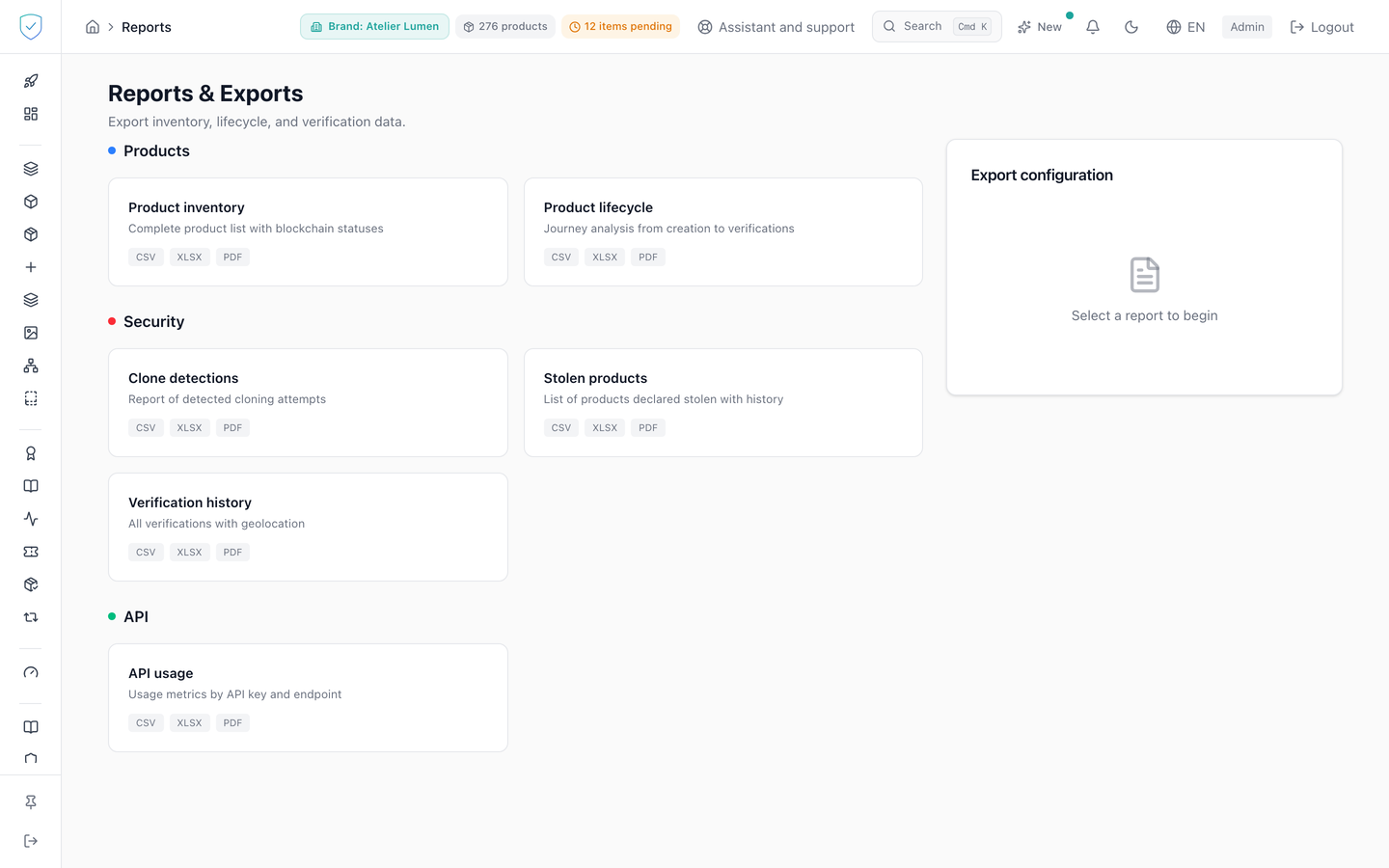
#What the screen shows
The "Reports & Exports" header, subtitled "Export inventory, lifecycle, and verification data."
Four categories, each preceded by its colour pill: "Products" in blue, "Security" in red, "Distribution" in orange, "API" in green.
Seven report cards: "Product inventory", "Product lifecycle", "Clone detections", "Stolen products", "Verification history", "Gray-market alerts", "API usage". Each carries its description and its formats. All seven offer the same three formats and are all available.
A sticky side panel, "Export configuration", with two date fields, three format buttons and a summary. At the bottom, a full-width "Start export" button, which becomes "Exporting..." during processing.
#What you can do here
Select a report by clicking its card, which is then outlined.
Choose a start date and an end date, both optional.
Choose the CSV, XLSX or PDF format. CSV is the default choice.
For "Gray-market alerts", also type an optional two-letter country. The file has one row per alert: the brand, the first and last sighting, the number of scans folded over 24 hours, the status, who set it and when, the note, the serial number, the product, the model, the country, the city, the source, the retailer, the zone the scan was compared with, then the B2B order and its distributor when the piece was tied to one: the zone is then that distributor's territory. The period applies to the first sighting. The same file comes from the "Export CSV" button of the "Gray market" tab of the Distribution screen, for the brand and country chosen. The country parameter, like brand_id and status (open for new or investigating alerts, or one status), is only accepted by this report: on another one, the export is refused instead of ignoring it.
A text that starts with =, +, - or @ (a retailer name, a product name) is never written as a formula. In an XLSX file the cell is text and keeps its exact value, with one exception: the control characters a workbook cannot hold (a vertical tab pasted from a PDF, for instance) are removed, instead of making the export fail. In a CSV file, which carries no type, the text is preceded by an apostrophe: your spreadsheet shows it as text instead of running it.
Run the export. The file arrives directly, named sealtrust_, followed by the report identifier, the day's date as year, month, day, and the format's extension.
Every export leaves one line in the audit log: the account that ran it, the date, the IP address, the brand or brands it covered, the report and the format. This trace never blocks the export: if it cannot be written, the file is served all the same.
A PDF report that contains a city or a country carries, at the foot of every page, the mention "Location data: IP Geolocation by DB-IP (db-ip.com), CC BY 4.0". These places come from the DB-IP database, published under that licence, which asks to be credited. CSV and XLSX files do not carry the mention: if you republish these places, credit DB-IP the same way.
#Recall traceability
Under the reports, the "Recall traceability" card serves a product withdrawal. It starts from a lot, or from a list of serials pasted as it is (one per line, or separated by commas or spaces, 5000 at most), and lists each unit with:
- the product, its reference, its GTIN, its lot and its status;
- the B2B order it shipped in, its status, its ship date and the date the unit was picked;
- the distributor, its code and its territory;
- the number of consumer scans, the date, the country and the town of the last one;
- where that place comes from, in plain words: "precise GPS position (about 1 km)", "town known by the network (approximate)", "Apple Private Relay region (approximate)" or "server network (not located)";
- the claim, read from the unit's current holder (the owner recorded on the chain) together with the claim history: "claimed, held by the claimant", "claimed, then transferred", "claimed, then back with the brand" (a buyback), "claimed, holder not known yet" (the chain is not read yet), "held by another wallet, no claim", "claim in progress" or "not claimed". The date is that of the last claim.
A scan counts when the verification succeeded: a failure or the telemetry of a chip read is never a scan. "Preview" shows the number of units, the first 20, and the serials not found. "Export CSV" and "Export Excel" download the whole list, the header line in the console's language. The same export starts from the "Recall: trace this lot" card of the lot page.
The CSV file is UTF-8 with a byte order mark (BOM), so that Excel reads
accents as they are, and follows the rule of the other reports: a text that
starts with =, +, - or @ is preceded by an apostrophe, and an XLSX
cell stays text. Every export leaves one export_recall line in the audit
log: the account, the date, the IP address, the brand, the format, the number
of rows, the lot or the number of serials asked for. Reading the preview
leaves none.
An archived unit is listed with its status, never reported as not found: it may still be in the market. Only the row replaced by a new mint of the same unit is left out, the new row stands for it.
More than 5000 pasted serials are refused out loud, with their number: the list is never cut in silence, and nothing is sent. The number of units is counted before anything is read: beyond 50000, the export is refused at once. The file is written line by line, so a large lot does not load the server's memory.
An unknown serial, a serial of another brand and a unit without identity read the same way: "Not found". A lot of another brand answers like a lot that does not exist. Only the units that carry identity are listed: those of a brand on the Compliance + Identity offer, and those minted under that offer before the brand changed it. Beyond 50000 units, the export is refused: export the recall lot by lot.
#What governs access
Your plan must include the exports feature. It is checked in three places in the console, and the server checks it again for each of your brands before producing any file at all.
You must be signed in and an administrator. Otherwise the console replaces the page with "Unauthorized. Please log in at www.sealtrust.io (nouvel onglet)." and a sign-in button.
The "Start export" button stays disabled while no report is selected, and for the whole duration of the export. While no report is chosen, the panel shows "Select a report to begin".
When the plan does not include the feature, the "Reports" entry in the side menu is dimmed, marked "Pro" and followed by a padlock; clicking it opens an upgrade email instead of the screen.
#What the screen refuses
Without exports in your plan, the page is replaced by "Feature unavailable", "This feature is not included in your current plan." and an invitation to contact SealTrust for an upgrade.
A start date later than the end date is refused, whatever the report.
With no date entered, an event report is brought back to the last 90 days. An explicit period of more than 366 days is refused. Product inventory escapes both rules: it is the only state report, so it has no default window and no maximum width.
An export that reaches 50000 rows is refused instead of being served truncated. The message asks you to narrow the period and export several files. A report of exactly 50000 rows is refused too.
A report with no rows at all is refused. The message is served exactly as the server writes it, in French whatever your language: Aucune donnée à exporter.
Any error appears in a red banner at the top of the page, "Error during export" by default.
Was this page helpful?
Your answer opens a pre-filled email in your mail app, addressed to contact@sealtrust.io. You read it over before sending it.