

The header bar
Locate the open page, switch brand, follow the counters and reach search and the profile menu from any screen.
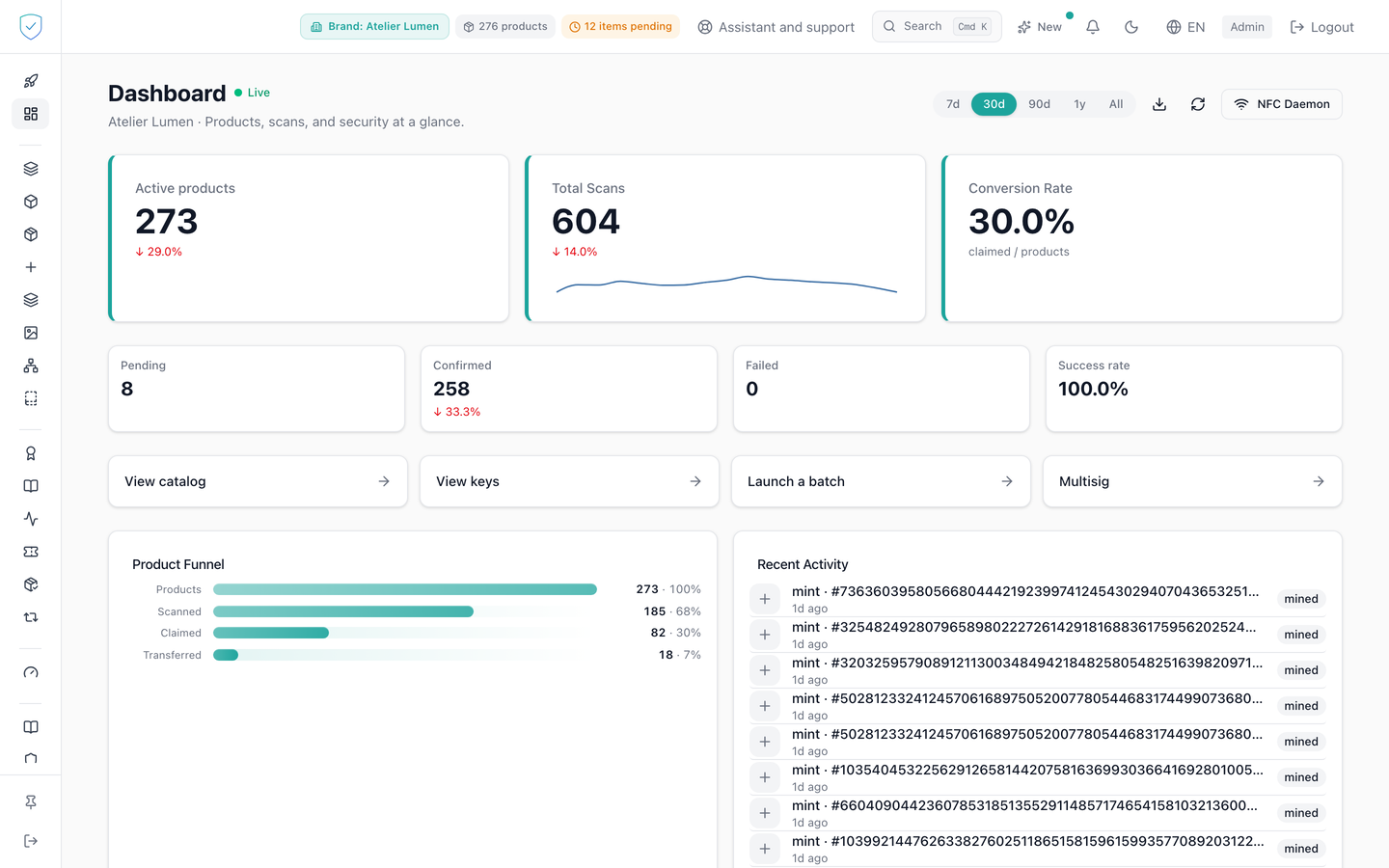
The header bar sits at the top of every console screen and stays in place when the page scrolls. It belongs to no screen, which is why it has a page of its own. It still carries the position marker, the brand counters and the commands used everywhere.
#What the bar shows
On the left, the breadcrumb: a home icon that leads back to the dashboard, then each level of the path preceded by a chevron. The last one is in bold and is not clickable. Each level carries the page's name as the side menu writes it, in the console's language, never the page's technical address.
Next comes the brand selector: a building icon and the name of the brand the console is looking at. When the account holds a single brand it is a label, with no menu. When it holds several it is a button that opens the list and switches the brand for the whole console.
Two counters follow: the number of "items in circulation" of the brand the bar names, the same number as the dashboard's tile, then, in amber, the number of "items pending" of the same brand. The tooltip of the first says what it counts: the brand's pieces, without the rows replaced by a re-registration of the same chip, and without archived or destroyed pieces. The tooltip of the second reads: "Items waiting to be minted. Click to see which jobs they belong to." Both are read again every 30 seconds. The second is also read again at once when a batch page sees its mint finish, when you retry, refresh or cancel a job, and when the tab comes back into view: it no longer contradicts "1/1 minted" shown on the batch page. It agrees with its number: "1 item pending", "2 items pending".
On the Compliance offer, these two counters are not shown: they count pieces, and this offer creates none.
On the right come a "Search" field carrying Cmd K on Mac and Ctrl K
elsewhere, a "New" button, a bell, and finally a round pill bearing your
initials: the profile menu.
#What you can do here
Both counters are clickable: they open the product list and the "Awaiting minting" screen, which shows the minting jobs that still carry pending items.
The profile menu gathers everything about your account and your comfort: your
address and your role, the brand being looked at and its plan, then "My
account", "My team", "Settings", "Getting started", assistant and support, the
language, the appearance, and "Logout". The Cmd+J shortcut still opens support
without going through the menu.
The "Search" field opens the command palette, as Cmd K does, and waits there
with "Search for a page...". Empty, it lists the pages you have access to, the
most recently opened first and marked with a clock. From two characters on, it
also runs a content search, filed under "Search results". A product is also
found there by the serial printed on the piece, in full or by its first four
characters at least, and that serial is shown under its name.
"New" unfolds the latest changes to the console. A dot signals that you have not opened them yet.
The bell opens the latest notifications, at most five, and "View all" leads to the alert center. With no notification, the panel shows "No notifications".
The language and the appearance are set in the profile menu, each showing its current value to the right of its row.
The chosen language is kept by your browser and read by our server: every screen is shown in your language from the very first display. Until a language is chosen, the console follows your browser's, French by default.
#What conditions the display
The width of the window removes elements: first the two counters, then the name of the brand, then the search field. The profile menu never disappears: it fits in a round pill. On a narrow screen, a menu button appears to the left of the breadcrumb and opens the navigation.
The breadcrumb disappears on the dashboard. The brand selector only appears if a brand is attached to your account, and only becomes a button if the account holds several. The pending items counter stays hidden as long as it is zero.
The icon rail on the left belongs to the same frame. Reduced to icons, it opens on hover and locks open with "Pin sidebar", a choice remembered from one visit to the next.
Was this page helpful?
Your answer opens a pre-filled email in your mail app, addressed to contact@sealtrust.io. You read it over before sending it.