

ERP and PIM connectors
Connect SealTrust to your ERP, your PIM or your online store, and choose the events that trigger a Slack or Microsoft Teams alert.
This tab stacks two blocks. At the top, the connectors to an ERP, a PIM or an online store, with a creation wizard and, for each one, a test, a sync, a pause and a deletion. At the bottom, the Slack and Microsoft Teams webhooks and the events that trigger an alert. The two blocks do not share the same access conditions.
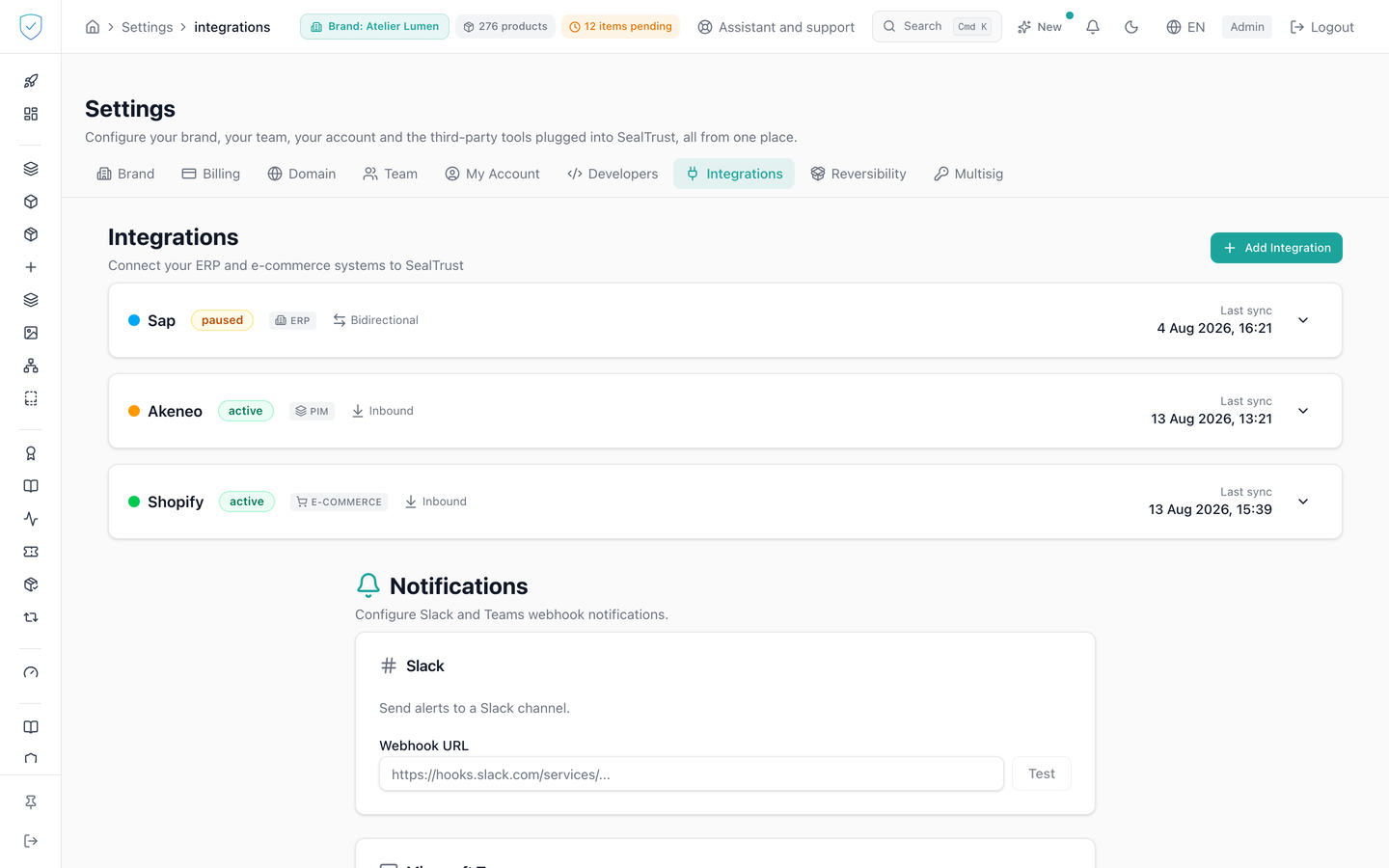
#What the screen shows
- An "Integrations" header with the subtitle "Connect your ERP and e-commerce systems to SealTrust".
- One expandable card per connector: provider, status, sync direction, creation date and webhook.
- When no connector exists, an empty state "No integrations connected", with an action button and a link to the getting-started guide.
- A creation wizard in four steps: Provider, Credentials, Sync, Test. Its catalogue offers eleven providers: Shopify, WooCommerce, PrestaShop, Salesforce, SAP, NetSuite, Dynamics 365, HubSpot, Odoo, Akeneo PIM and Salsify.
- The address to paste into your ERP, on each connector's card and in the wizard, once the brand is chosen. It ends with
/webhooks/integrations/{provider}/{brand_code}: it names the brand by its ten-character public code, for example7K3QXW9M2A. - A Slack card and a Microsoft Teams card, each with a "Webhook URL" field and a "Test" button.
- An "Events to notify" card with five boxes: "Clone alert detected", "Gray-market alert (item seen outside its authorized countries)", "Batch completed", "Trust score critical" and "Drop of a model's passport readiness score", then a "Save" button. These are the five events the server can send. Before this version, the gray-market and readiness boxes were not shown, and saving the card switched them off without saying so: a brand that saved its settings then finds them unticked and can tick them again. A gray-market alert is sent once per item and country in 24 hours.
#What you can do here
- Add a connector with "Add Integration" and the wizard.
- Copy the address shown and paste it into your ERP. If you already pasted an address that carries the brand's number, it keeps working: you have nothing to change.
- Check the credentials with "Test Connection", start a sync with "Sync Now", pause or resume.
- Choose what the sync goes and fetches. "Product" and "Certificate" are offered everywhere. "Passport (products, bill of materials, suppliers)" only appears on connectors that can read a bill of materials or a supplier list from the data provider, today Odoo, SAP, Akeneo PIM and Dynamics 365. This is the choice that fills the passport from the ERP instead of by hand.
- Edit the credentials and the field mapping. A mapping can only fill the model fields the partner catalog API also accepts: the name, the description, the SKU, the GTIN, the category, the specifications, the image, the customs code and description, the weight and its unit, the volume, the dimensions, the six instruction links, the compliance playbook and the three warranty settings. The model's brand, its number, its identity level, its authorized countries and its dates are never written by a sync.
- Find your mapping again. The "Field mapping" window shows the mapping you saved, and proposes the provider's default one as long as nothing has been saved. Saving it leaves the connector's other settings untouched.
- Delete a connector after confirmation.
- Enter a Slack or Teams webhook URL and try it with "Test".
- Fill a connector's credentials without your browser stepping in. No field of the wizard, of the credentials edit or of the Slack and Teams cards accepts the login or the password you saved for the console: a token, an API key or a connector password is always typed by hand, or pasted.
- Tick or untick the three notified events, then "Save".
#What controls access
- The connector block depends on the ERP connector entitlement carried by your plan. Without it, the content is greyed out and not clickable.
- The Slack and Teams block is subject to no plan entitlement.
- The server checks that entitlement again when a connector is created, tested and synced.
- The "Integrations" tab is hidden for the basic profile.
- "Sync Now" stays disabled while the connector is not in the
activestatus. "Pause" and "Resume" are disabled in theerrorstatus. - A manual sync waits at most 30 seconds. The status returned is
completedwhen it finished, otherwisein_progress, with an invitation to consult the sync log. - The connector list is capped at 100 rows by default, with a maximum of 500.
#What the screen refuses
- Plan without connectors: "Feature locked", then "Upgrade your plan to unlock this feature."
- Syncing a connector that is not active: "Integration is {status}; must be active to sync".
- Provider with no registered connector: "No connector registered for provider '{provider}'".
- ERP address whose code names no brand: the same 404 answer as a brand without an active connector.
- Failed connection test: "Connection test failed: ...".
- Webhook URL without
https: "Save" refuses it with "Enter a valid Slack webhook URL (must start with https://)." - Unknown event sent to the server: "Invalid event types".
- A mapping that targets a forbidden field, for example the brand (
brand_id): "The mapping was not saved: a connector cannot write the field “brand_id”." The message names the field to fix. If such a mapping already exists, the sync ignores that field, notes it in its log and syncs the rest of the product. - A product image that is not a real image: when Shopify, Akeneo PIM or Salsify gives the address of a product's image, SealTrust keeps a copy only if its content is a JPEG, PNG, WebP, GIF or AVIF image. The server hosting the image must announce one of these image types, or no type at all. Then the content decides. An image announced as a generic file, for example "application/octet-stream", is not copied, even if it is a real image. An SVG, a web page or any other file is not copied: the model keeps the image it had, or stays without one. A real image announced under another format, for example a PNG presented as JPEG, is kept under its real format.
- Deletion: a "Delete this integration" dialog warns that the integration and all its sync data will be permanently deleted.
Was this page helpful?
Your answer opens a pre-filled email in your mail app, addressed to contact@sealtrust.io. You read it over before sending it.