

Product passports
The brand's product passports, their version history, the comparison of two versions, the JSON export and the creation form.
On this page
- What the screen shows
- What you can do here
- Read the passport back before publishing it
- What saving does with your empty fields
- Regulatory declarations: three states, never two
- The fields your template brings
- Reuse the model's components instead of retyping them
- Regulatory texts: offered, never ticked
- The greyed examples
- The signature, issued at publication
- The EU declaration of conformity, from producing it to publishing it
- We never sign for you
- How often you have to sign
- The signatory does not live in the passport
- The personal data warning
- What governs access
- What the screen refuses
This is where product passports are written and published. A passport exists as numbered versions: as long as a version has never been published it stays an editable draft, once published it is sealed and any correction becomes the next version.
The list only shows the passports of the brand chosen in the top bar. It used to show those of every brand on the account.
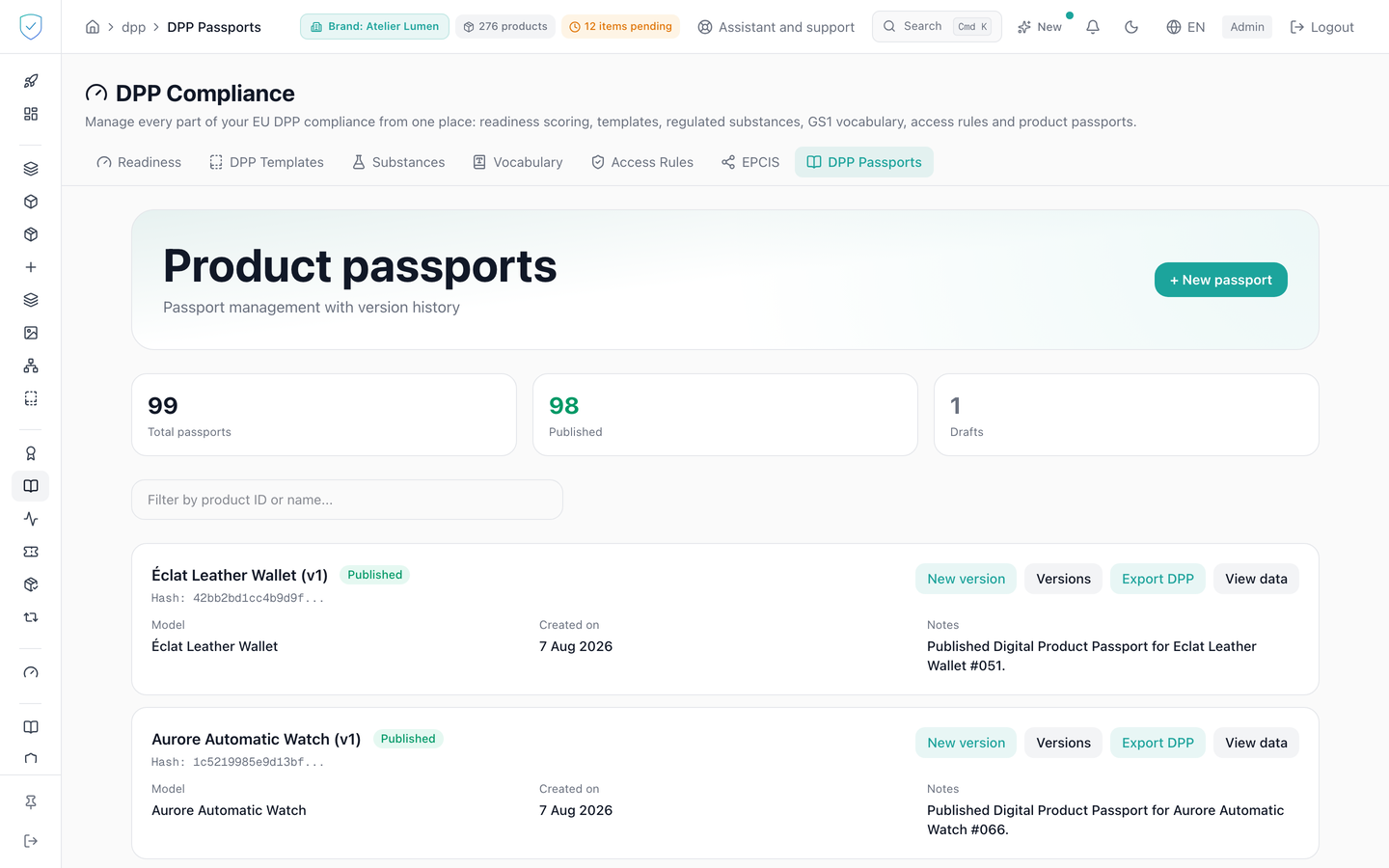
#What the screen shows
- A product passports header, a subtitle about passport management with version history, a new passport button and three tiles: total passports, published, drafts. A superseded version is not counted among the drafts.
- A filter field for a product ID or name, followed by the number of results as soon as it is filled.
- One card per passport: the model or product name followed by the version, a state badge, the first 16 characters of the hash, what it is attached to, the creation date and the notes. The badge shows one of four states: "Draft" (never published), "Published", "Superseded" (published, then replaced by a later version) or "Offline" (published, then taken offline with no version after it). A superseded or offline version also shows its publication date. Four buttons: edit or new version, versions, DPP export, and a show data button that turns into hide. A draft card carries a fifth one, publish. A superseded version is read-only: no publish, edit or new version button. A new version starts from the one that replaced it.
- A history window: a table of version, hash, status and date, two lists for version A and version B, a compare button.
- A comparison window split into additions, removals, changes with the before value and the after value, and unchanged entries.
#What you can do here
- Filter the list as you type, over the passports already loaded, by passport identifier, product name, model name or product identifier.
- Open a passport history, pick two versions and run the comparison.
- Download the DPP export as indented JSON:
dpp-product-<id>.jsonfor a unit passport,dpp-model-<id>.jsonfor a model passport. A batch passport has no export: its card does not carry that button, its attachment shows "Batch" and the batch number, and its history lists the versions of that batch. It is created from the batch's detail page. - Expand a card to read the raw data.
- Create a passport attached to a product model or to a single unit, apply a DPP template to pre-fill it, tick the publish immediately box. The product model list only offers those of the brand chosen in the top bar. Choosing a product model that already carries a compliance playbook selects the matching DPP template, as long as none has been picked by hand: without this, one could fill a fashion passport while the same model's score was computed on the construction scale. Arriving from a product record opens the screen on that product, the address carrying
?product_id=<id>and, to open the dialog,&action=create. - Edit a draft in place, or create the next version of a published passport.
- Publish a draft from its card, through the "Publish" button, which asks for a confirmation: a published version is sealed, it can no longer be edited and can only be superseded by a new one. That button was missing, and the action went through "Edit" then a checkbox at the bottom of the form.
Publishing a version unpublishes the other published versions of the same scope, which go back to being visible to the brand only. They switch to the "Superseded" state and can no longer be republished: the API refuses with a 409 passport_version_superseded, so that a stale version never takes back the place of the one that corrected it.
#Read the passport back before publishing it
The "Preview before publishing" button, under the form, shows the document the way each reader will see it once published: anyone, the owner, a repairer, a recycler, an authority.
Each one sees a different version, and that is deliberate: the public tier is a whitelist, an authority sees everything.
The preview goes through the same functions as the real publication: the same pruning of empty fields, the same per-reader filtering, your brand's own access rules. A preview that rebuilt the rule on its side would end up showing something other than what actually goes out.
The rules applied are those of the brand of the passport on screen: the one of the passport you are editing, otherwise the one of the model or product chosen. An account linked to several brands, or a superadmin, therefore sees the right brand's rules. The "no brand resolved" notice only shows when nothing is chosen yet.
On a textile passport, the name and the percentage of each material show for "anyone": this is the fibre composition the label has to carry. See Passport access rules.
It also lists what will not be published because it was left empty. That matters: an entirely empty section would claim a document exists while saying nothing about it, so it disappears, and you cannot guess that disappearance without seeing it.
⚠️ A preview writes nothing: no version, no hash, no anchoring. Publishing stays a separate gesture, and it is a commitment: the published version is sealed, its hash is written on chain and the copy is pinned on IPFS.
#What saving does with your empty fields
In the "EU declaration of conformity" section, a field you leave empty is not saved. If you fill in none of them, the whole section does not appear on the published passport.
This is deliberate. A published version is sealed and its hash is written on chain: an empty section would stay there, and it would assert that a conformity document exists without saying anything about it.
So fill in what you have and complete it later, by creating a next version.
The same rule holds for figures and materials. A figure left empty is not saved, and the public page shows nothing in its place, never a 0: an absence is neither a yes, nor a no, nor a zero. A material row whose name, share and origin you all left empty is not saved either. Nor does it count in the readiness score: an empty field is never counted as filled there, while a 0 you type is.
#Regulatory declarations: three states, never two
Every declaration in the compliance block is answered yes, no, or left unanswered. That third state is the one it holds until you choose: it means neither yes nor no, and it does not show on the public page.
A "no" stays visible, and that is deliberate. It says you declare you do not comply, which may be a real obligation not yet met. Making it disappear would hide a breach.
Every declaration of the chosen template is editable, including CE marking, RoHS, WEEE and the article 13.4 and 13.5 markings of the battery regulation. A declaration added to a template tomorrow appears on its own.
#The fields your template brings
Each template brings its own fields on top of the shared sections: the EU declaration of conformity, energy efficiency, the declaration of performance of a construction product, a battery's characteristics.
They appear grouped by section, with a readable label. You cannot rename or delete a field that comes from the template: it is part of what the regulation expects, and leaving it empty is an answer whereas deleting it is not.
The fields you add yourself stay entirely free.
#Reuse the model's components instead of retyping them
If your product model carries components in the catalogue, a "Reuse the model's components" button appears above the materials. It adds one row per component, with the material's name and its country of origin.
Nothing is reused without that click, and the button never overwrites a row you already wrote: existing rows are left untouched, and the console tells you which ones.
⚠️ Shares are computed only when every component has a weight. They are then derived from those weights. If a single one is missing, every share stays empty and you fill them in: a share computed on a partial total would understate all of them, and the published passport would not say so. A computed share is never rounded to 0: a very light component keeps a non-zero share, with two significant digits.
A component and a material do not describe the same thing. A component carries a
weight and a supplier, and no role; a material carries a role (primary,
lining) and a share, and no weight. That is why reuse is a gesture and not a
pre-fill: you are the one who says which component holds which role.
#Regulatory texts: offered, never ticked
The EU declaration of conformity asks for two lists: the European texts your product complies with, and the standards you applied.
The console offers the texts that concern your template, with their number and their title. Nothing is ticked in advance. You declare what applies to your product, and a box you leave unticked does not reach the passport.
The list stays open: you can add a line we do not offer, and remove a line you ticked.
⚠️ The year of a standard changes. A standard is cited in the Official Journal with a date, and that citation is replaced over time. Check the citation in force before you declare a standard.
For some templates we offer no standard at all, and we say so under the field. A construction product's standard belongs to its own product family: an approximate reference would void your declaration of performance, so we would rather offer nothing.
#The greyed examples
An empty field shows a greyed example. It shows the expected shape and comes from the template you chose: an electronics field shows an electronics example, not a leather one.
A greyed example is never saved. Only what you type is.
#The signature, issued at publication
Publishing signs the passport: the electronic signature is issued automatically, with the brand's key, with no further step.
The issuer identity is your own domain when you have one, ours otherwise. A white-label brand is never signed under our identity: that would publish its document under our name, and it is permanent, a signed passport staying verifiable under its issuer forever. In that case publishing still happens, signing does not: set your issuer domain and publish again.
#The EU declaration of conformity, from producing it to publishing it
Under each passport, an EU declaration of conformity block takes you through four steps.
- Download the declaration. The document comes out filled from the passport data, in the order and with the headings of the official model, signature line empty.
- Have it signed by the authorised person, on paper or with your own tool.
- Upload the signed version.
- Publish it on the passport. The button says what it does: it creates the next version and anchors it, and the document then appears on the public page of every unit.
The block only loads when you open it, so a screen showing many passports does not query the server once per passport.
What is missing is said before the download, not after. Handing over a document with holes in it would have you publish those holes, for a market surveillance authority to find.
What your brand sheet already holds is not asked again. Point 2 (name and address of the manufacturer) takes the name and postal address of your brand sheet when the passport does not give them. Point 4 (object of the declaration) takes the model and the GTIN. When the passport names another company, a subcontractor for instance, its address is never completed with yours: you are asked for it.
The document is in the language of your console. A French console gives the declaration in French, with the headings of the official model in French; an English console gives it in English. The points, their order and their values are the same in both languages. To get the other version, switch the console language before downloading.
You never handle an address. The uploaded file gets a permanent public address, and the publish button puts it into the passport for you.
#We never sign for you
The official model says the declaration is issued under the sole responsibility of the manufacturer. The signature line on the document we produce stays empty, and no button will ever fill it.
No qualified electronic signature is required for this document: the printed name and function of the authorised person are enough. So you can sign on paper, or run our PDF through your own provider if you prefer.
#How often you have to sign
Once per published passport version, not once per product sold. A passport written at model level covers every unit of the series. You only sign again when an element of the declaration changes, which the regulation requires anyway.
#The signatory does not live in the passport
The name and function of the person signing are entered once, in your brand settings, and not in the passport.
This is deliberate. Passport data is fingerprinted and anchored on the blockchain, where nothing can be removed. A natural person's name would be written there for good, and the day they leave your company and ask for their data to be erased, nobody could do anything. In the brand settings, it is a line you can change or clear.
#The personal data warning
In the free fields, as soon as a field name suggests personal data, email, phone, contact name or signatory, a line appears under the field.
It is there because the passport hash is written on chain: what you type stays there permanently, whatever access level you choose. An access level decides who may read, not what is engraved.
This warning blocks nothing, and that is deliberate: some of these fields are required by regulation, for instance the manufacturer contact details for a battery. Prefer a company address over an employee's.
#What governs access
The screen depends on the dpp option of your plan, which creation and update also check on the server side. The tab sits behind the DPP workspace profile guard, and the DPP passports entry in the side menu stays visible but locked for the basic brand profile.
The padlock only appears once your plan has actually been read. While the console has not managed to read it, on page load or after a network problem, it leaves the screen open instead of announcing a refusal it cannot back. The server is what decides when you save.
The list asks for 100 passports at once, newest first. Saving a creation stays disabled until a product model or a product identifier is provided, and compare until both versions are chosen. The form switches on its own between editing in place and creating a new version, depending on whether the open version is sealed.
#What the screen refuses
- Without the DPP option, the page still shows but greyed out and not clickable, under a panel announcing the locked feature and inviting you to upgrade the plan.
- Editing the content of a published version is refused: it is sealed, a corrected version has to be published instead.
- Creating a passport with neither a product model nor a product: "product_model_id or product_id is required".
- A GTIN whose check digit is wrong is refused, on creation as on edit, and the message gives the expected digit. The passport carrier is the GS1 Digital Link: a GTIN with a wrong check digit would never resolve, and the passport would stay unreachable through the very path the regulation expects. A missing or empty GTIN is still accepted, it is not mandatory.
- Creating a passport on a product with no brand: "This product has no brand; the passport cannot be scoped".
- Publishing a model or batch passport under a GTIN that another brand already publishes, through its model passport or one of its batches: 409. A GTIN belongs to one brand, and two brands publishing under the same code would make the address unreachable for both.
- Creating or reading a passport on a model, a batch or a unit of a brand outside your scope: 404, the same answer as an unknown identifier.
- On failure, a red banner shows a loading error or a creation error.
Was this page helpful?
Your answer opens a pre-filled email in your mail app, addressed to contact@sealtrust.io. You read it over before sending it.