

The team and roles
Invite by e-mail the people who reach a brand's console, follow the pending invitations, and remove from that brand the ones who leave it.
On this page
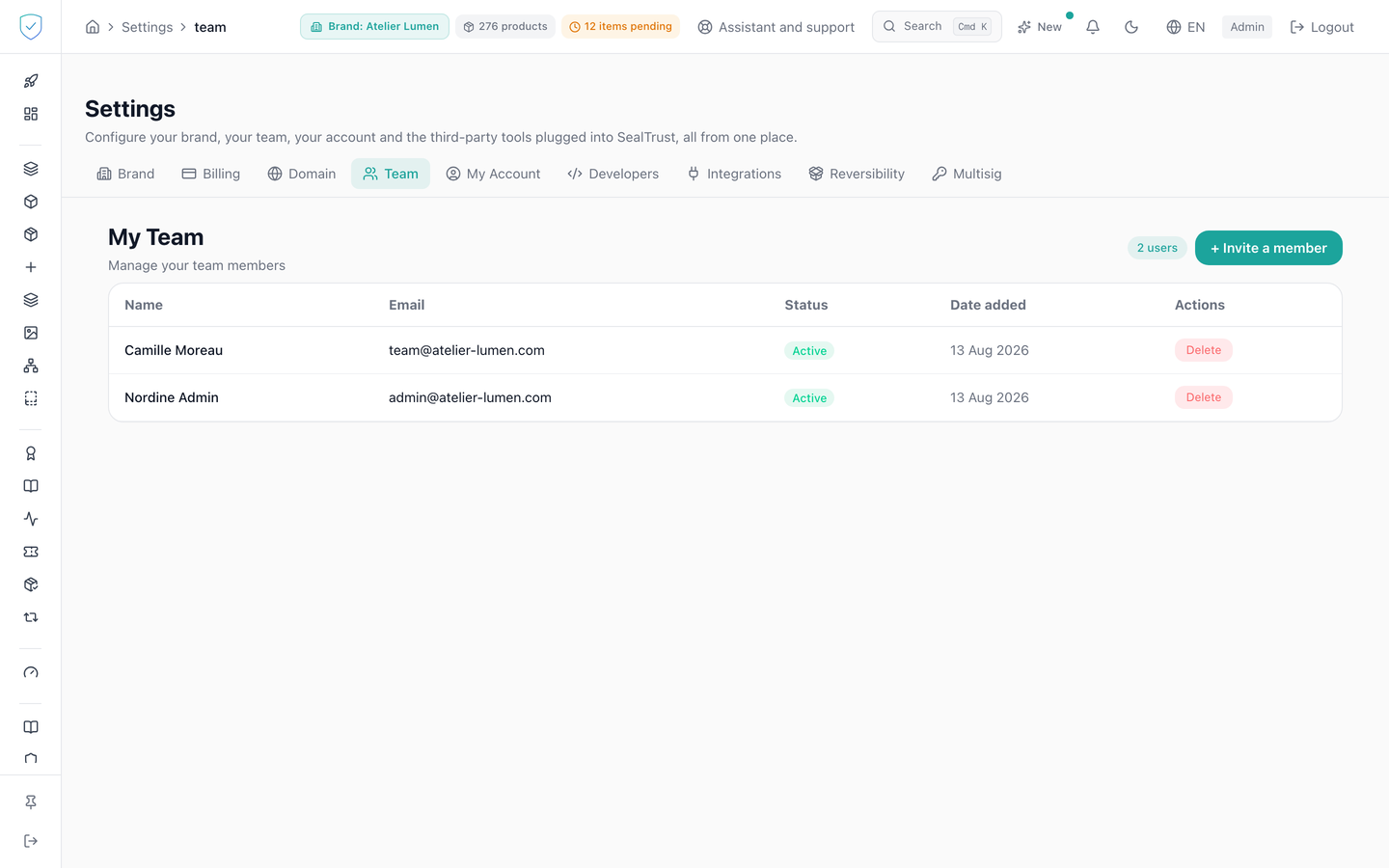
This tab lists the people who can open a brand's console, and is where you invite or remove them. It works on the brand named under the title, the one you picked in the top bar: the list is that brand's, an invitation lands there, and a removal touches that brand alone. If you administer several brands, switch brand in the top bar to see another team. An invitation goes out by e-mail: the person receives a link valid for 72 hours, and they are the one who chooses their password. You never see it and have nothing to pass on. The number of members is capped by your plan.
#What the screen shows
- A quota badge. When the plan caps the team, it gives the current number of seats taken over the allowed maximum, in the "{current}/{max} users" shape. When the plan sets no cap, it gives the count alone.
- The invite button, above the list.
- The name of the brand you are working on, next to the subtitle.
- Each person's role. There is only one: brand administrator. An account without it does not get a reduced view, it does not open the console at all.
- That brand's member list, with a button on each active row that names the gesture it can perform: "Remove" for someone who also belongs to another brand, "Deactivate" for someone who belongs only to this one. Rows already deactivated carry none.
- On a brand opened by a reseller under contract, each person of the reseller's team carries "Reseller · " followed by the reseller's name in place of the role, and "Managed by" followed by that name in place of the button. They use no seat of the brand, and only the reseller can remove their access, from its own team.
- The invited people who have not chosen their password yet, marked "Invitation sent" with the date until which their link is valid, or "Invitation expired" once that time has passed. Each carries two buttons: "Resend" and "Cancel invitation".
#What you can do here
- Open the invitation window and enter an address, a first name and a last name. Nothing else: the window asks for no password.
- Send the invitation. The person receives an e-mail with a link to the console, valid for 72 hours and usable once. The screen confirms the sending, or says that the e-mail could not leave.
- Resend an invitation, pending or expired. A new link goes out, valid for 72 hours, and the old one stops working at once.
- Cancel an invitation. Its link stops working at once and the seat is freed.
- Remove a member from this brand, when they also belong to another one. Their account stays open and they keep access to their other brands. Only the link with the brand on screen is removed, so their row leaves this list.
- Deactivate a member who belongs only to this brand. Removing them from it would leave them with no access at all, so the screen offers the one gesture that makes sense: closing their account. Their row stays in the list, marked inactive, and their open sessions stop.
#What the invited person sees
- The link in the e-mail opens a console page that names the brand and the invited address. There they choose their password and confirm it.
- The password follows the same rule as everywhere else: at least 10 characters, including an upper-case letter, a digit and a special character. The page ticks each condition as it is met.
- Once the password is chosen, the person is signed in through the console's ordinary sign-in, with its usual rules. The link alone opens no session.
- A link that can no longer be used shows the same page whatever the reason: expired, already used, replaced by a resend, or cancelled. It asks them to request a new link from the person who invited them.
- The e-mail goes out in the brand's default language, failing that in the language of the person who invites. In white label, it carries the brand's name and colour, like the other transactional e-mails.
#What controls access
- The cap comes from your plan. The badge counts seats, that is the people who actually take one: a deactivated account no longer uses one, and if your brand was opened by a partner under a reseller contract, their team is listed without using a seat, and each of their rows says so. The number of rows shown can therefore exceed the number of seats; with no cap, the number shown only counts the brand's own people. When a deactivated account still makes the difference, the screen explains it.
- A pending invitation takes a seat as soon as it is sent, like the account it announces. An accepted invitation counts as the account it became; a cancelled or expired invitation no longer takes anything, and resending an expired one takes a seat again.
- When the cap is reached, the invite button is disabled and a tooltip on hover recalls the plan maximum.
- The button in the invitation window stays disabled while the address, the first name or the last name is empty. All three are required: without a first and last name, the console has only the email address left to identify the person in the audit log.
- Before sending the invitation, the server checks that the plan is active, then that the user quota is not reached.
- The account exists only once the password is chosen. The person is then created a brand administrator, and their address is marked as verified, since they opened the link received at that address. The invitation window states this role, because no second role exists today.
- If the brand holds a reseller contract, the invited person also joins the client brands opened under it at the moment they accept. The contract binds two companies, so someone joining later should not be left without the brands the team already administers.
- An invitation creates the person on the brand on screen, not on another one.
- Sending, resending, cancelling and accepting an invitation each leave a line in the audit log, and so does deactivating an account.
- Before someone is removed, the confirmation window names the person and the brand, and recalls that the account stays open.
- Before someone is deactivated, it says that the brand on screen is the only one they belong to, and what deactivation closes.
- Which gesture is offered comes from how many brands the person belongs to, not from a setting: attach them elsewhere and the button becomes "Remove".
- A repairer or recycler accreditation given by another brand counts as another brand. A repairer attached to your brand and accredited elsewhere is therefore offered "Remove", never "Deactivate", and its role cannot be changed from your console: its account also serves that other brand.
#What the screen refuses
- An address already used by another account is refused: "An account already uses this address".
- An address that already has a pending invitation is refused: resend it or cancel it from the list.
- A password that does not follow the rule is refused on the invited person's page, and the invitation stays usable.
- Removing yourself from the brand you administer is refused. Ask someone else on the team to do it.
- Removing the last person attached to a brand is refused: nobody would be left to administer it. Attach someone else first.
- Removing someone from their only brand is refused: their account would open nothing. That is why the screen offers deactivation instead.
- Acting on a brand your account does not administer is refused, and so is resending or cancelling another brand's invitation.
- Deactivating an account, or changing its role, is refused if that account also opens a brand you do not administer. Both actions apply to the whole account, on all of its brands: this is the case of the team of a partner who opened your brand.
- Removing from your brand a person of the team of the reseller who opened it is refused too, with the
RESELLER_ACCESScode: their access comes from the reseller contract, which binds two companies, not a person. Ask the reseller to act from its own team. - Going over the quota is refused by the server, which returns the resource concerned, the current count and the maximum. The screen then shows an invitation to move to a higher plan.
Was this page helpful?
Your answer opens a pre-filled email in your mail app, addressed to contact@sealtrust.io. You read it over before sending it.