

The setup checklist
Work through the eight onboarding steps for your brand, with the ones already done ticked automatically.
This screen is the entry point of the console for a brand that is starting out. It lays out eight onboarding steps, from account setup through to consumer experience, each one expandable into sub-steps.
On the Compliance offer, the list counts six steps instead of eight: "Choose the carrier, then mint" and "Digital Identity" serve the identity of every piece, which this offer does not include, and are left out. The six remaining steps are numbered 1 to 6, on the page and in the small widget on the dashboard, which follows the same list. In the last step, "Consumer Experience", only the scan sub-step remains, written for the QR code of a model or a batch: claiming, transfer and the mobile app are left out. The frequently asked questions go from 15 to 8: those on minting, NFC, certificates, freezing a product, the trust score and clone detection are left out, and the answers on QR codes, exports, how consumers verify and analytics are written for this offer. The introduction sentence also announces six steps. Of the three video thumbnails, only "Console tour (60s)" remains: "Quickstart" shows a tag being minted and "What your customer sees" the page of a piece.
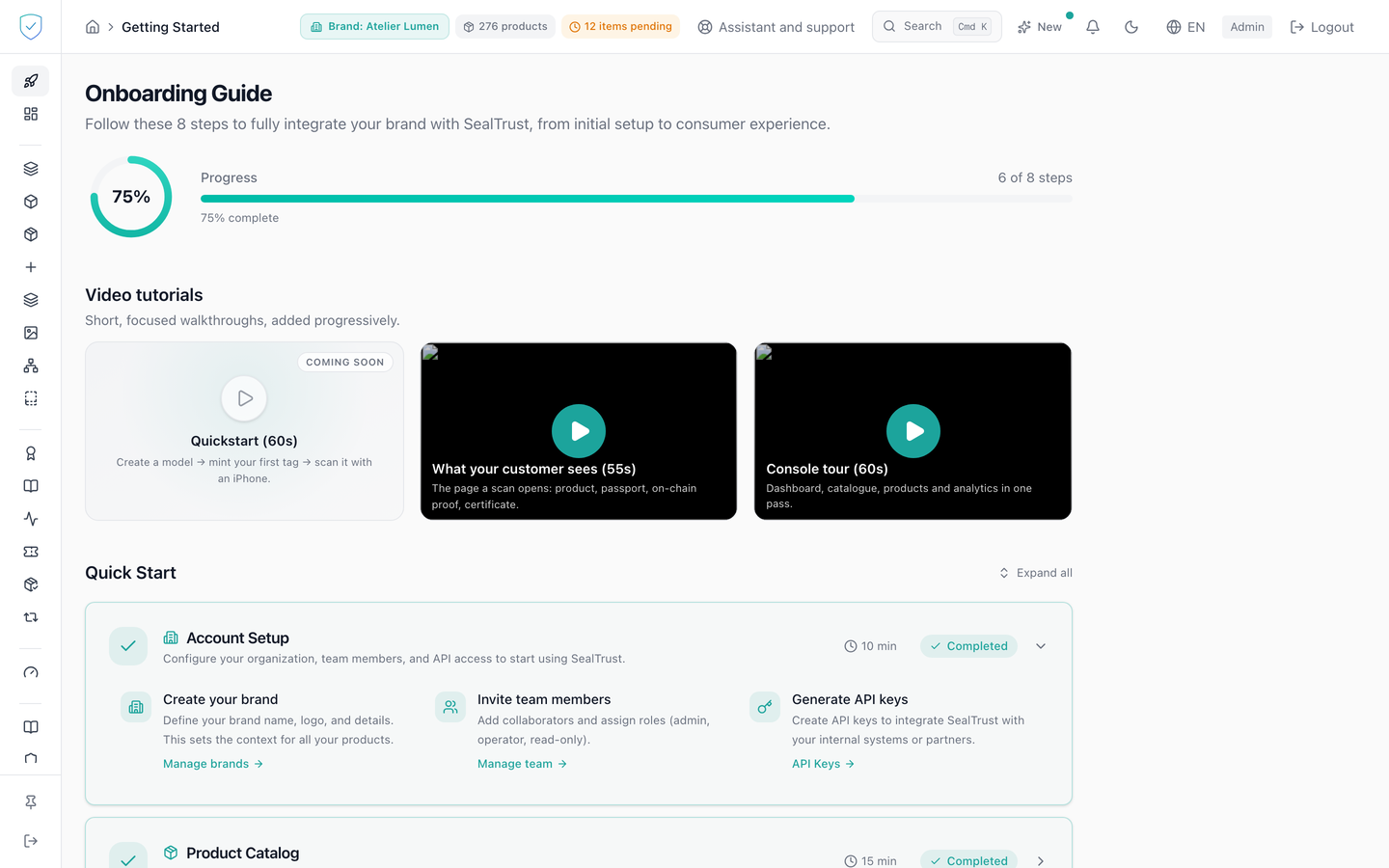
#What the screen shows
Under the heading "Onboarding Guide", a progress ring gives the count "{count} of {total} steps" and a percentage rounded to the nearest whole number, computed on the ticked steps. Sub-steps do not enter that computation. Once the 8 steps are ticked, a "Congratulations!" banner is added just below it.
Next comes the "Video tutorials" strip and its three thumbnails, then the block of step cards.
The 8 numbered cards each carry a title, a description and an estimated duration. Each one shows a status pill: "Completed", "Pending", or "Checking..." while the console queries the server. Once expanded, a card shows its sub-steps in a grid of up to three columns, most of them with a link to the screen concerned.
On load, step 1 is expanded. The console then queries the server for 6 of the 8 steps, once per brand being viewed, and ticks those that already have data. Switching brand in the top bar runs the check again, and all 6 questions are about that brand alone. It then expands the first step the server did not confirm. That computation only keeps the server's answers: boxes you ticked by hand do not enter it. Since steps 7 and 8 have no check at all, a brand whose 6 checkable steps all answer sees step 7 open every time.
The page ends with 15 "Frequently Asked Questions" as accordions, closed on load.
#What you can do here
Expand or collapse a step by clicking its header, or with the Enter key. The "Expand all" and "Collapse all" link acts on all 8 cards at once.
Tick or untick a step by clicking its pill. That state is stored in your browser, brand by brand, under the key sealtrust_gs_completed:<brand number>: the steps of one brand never show on another. Nothing is sent to the server, so a colleague on another machine will not see your ticks.
The "Do it now" button opens the screen for that step, and disappears as soon as the step is ticked. Step 8, "Consumer Experience", has no destination and therefore never shows that button: you tick it by hand. For step 1, this button and the "Manage brands" link both land on the dashboard when you are signed in with a brand account.
#What controls access
You must be signed in with an administrator account. No plan locks this screen, and the "Getting Started" menu entry stays visible whatever brand profile was chosen at sign-up.
#What the screen refuses
An account that is not an administrator sees, in place of the page, the message "Unauthorized. Please log in at www.sealtrust.io (nouvel onglet)." and a "Log in" button.
When a check fails, the step is rendered as "Pending" without any message. So an unticked step means one of two things: no data, or a failed call.
Of the three video thumbnails, two play a real video, "What your customer sees (55s)" and "Console tour (60s)". The third, "Quickstart (60s)", plays nothing and carries the "Coming soon" pill: it has not been recorded yet, because it creates data and requires a superadmin account. Saving your ticks can likewise fail silently, and the tick is then lost on reload.
Was this page helpful?
Your answer opens a pre-filled email in your mail app, addressed to contact@sealtrust.io. You read it over before sending it.