

Messages
Write, schedule and send messages to the owners of your products, then measure the read rate.
This screen is where you speak to the people who own your products: announcement, update, promotion or recall. You list the messages already written, you create one by choosing its audience, and you save it as a draft, schedule it, or send it right away. For messages already gone, it shows the recipient and read counts.
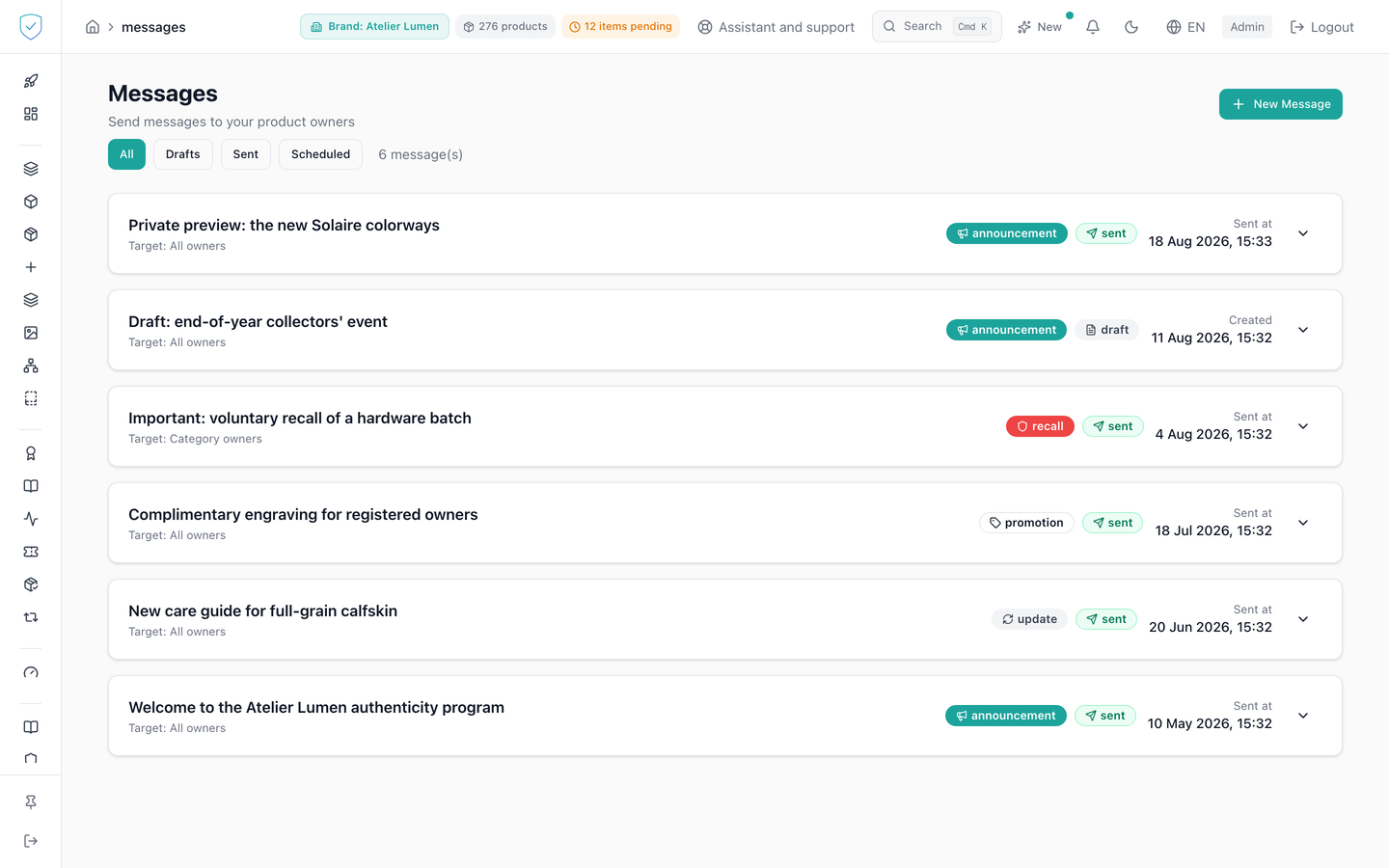
#What the screen shows
- A "Messages" header with the subtitle "Send messages to your product owners".
- A bar of four status filters, "All", "Drafts", "Sent" and "Scheduled", followed by the total count.
- One card per message: the title, the audience targeted, a type badge and a status badge. The date shown is the send date when the message has gone, otherwise the creation date.
- Expanded, the card shows the full content, the targeted identifiers, the scheduled date and the send date. For a sent message, it adds "Recipients", "Reads" and "Read rate". That rate is reads over recipients, as a percentage, shown with one decimal.
- When the list is empty: "No messages sent yet. Create your first brand message."
- The dialog opened by "New Message": brand, title, content, type, audience, scheduling and preview.
#What you can do here
- Filter the list by status, and expand a card to read the message and its statistics.
- Create a message, save it as a draft, or schedule its send for a precise date and time.
- Send a draft or a scheduled message with "Send Now". From the dialog, that button chains the creation then the send.
- Choose the type among
announcement,update,promotionandrecall, shown as "Announcement", "Update", "Promotion" and "Recall". - Choose the audience among
all_owners,product_owners,category_ownersandmodel_owners, then pick the products, categories or models by name in a search field. Each product carries its serial there, then its lot, and the serial can be searched too. - Show or hide a preview of the message before sending it.
#What controls access
- The "Messages" entry in the side menu carries no profile restriction. The content only appears for an authenticated administrator session.
- The save and send buttons stay disabled while the brand, the title, the content and the audience are not all filled in.
- When the audience is not all owners and nothing is ticked, an amber warning appears under the selector.
- The audience selector loads at most 100 models or 100 products for the chosen brand.
- The send button only appears on a draft or scheduled message, and statistics are only requested for a sent message.
- The list is paginated: 50 messages by default, 200 at most. An account with no reachable brand gets an empty list.
#What the screen refuses
- Re-sending a message already gone: "Message already sent", shown as is under the button.
- A title over 255 characters or a content over 10000 characters. The content field shows a counter in the "128 / 10000" shape and blocks typing, then the server refuses in turn.
- A type outside the four allowed values: "Invalid message_type".
- An audience filter key other than
product_ids,category_idsandproduct_model_ids: "Invalid target_filter keys". - A brand outside the account's scope: the list is filtered, and creation is refused.
- If sending the notifications fails, the message stays marked as sent and the error is only logged.
Was this page helpful?
Your answer opens a pre-filled email in your mail app, addressed to contact@sealtrust.io. You read it over before sending it.