

Products
The brand's unit-by-unit inventory: find one item, follow its mint status, download its QR code and withdraw it from the catalog.
This screen lists the units registered by the brand, one row per physical item. You open it to find one unit, to see where it stands on its mint, its certificate and its passport, or to get its QR code. Clicking a row opens its detail page.
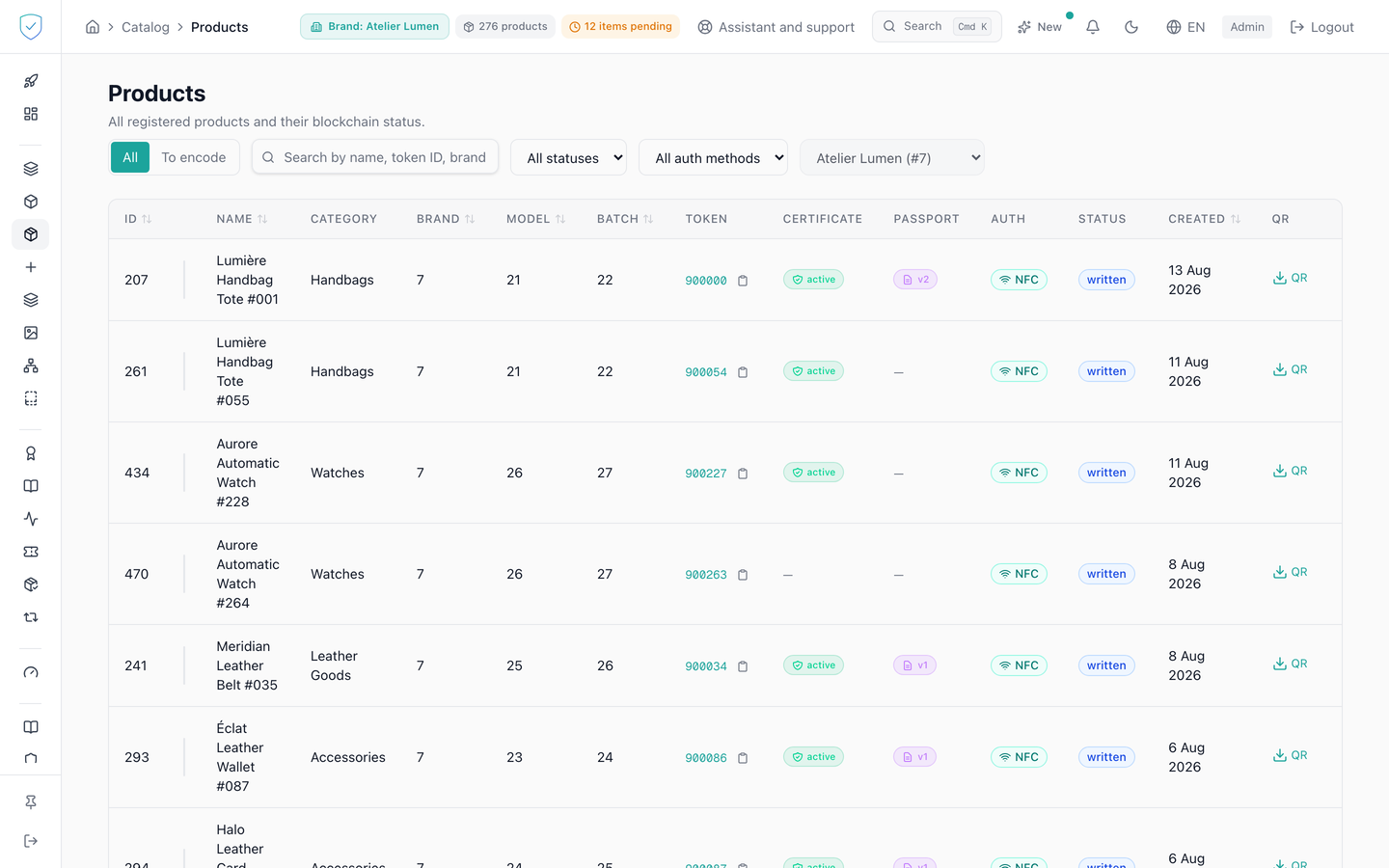
#What the screen shows
A table of 20 rows per page: ID, Name, Category, Brand, Model, Batch, Token, Certificate, Passport, Auth, Status, Created and QR. Each row carries a thumbnail of the product, or a dash when no image resolves. The Certificate badge is green when the certificate is active, red otherwise. The Passport badge shows v followed by the version number, only if the passport is published. Two other badges give the carrier (NFC, QR, NFC + QR) and the mint status.
The page size selector offers 10, 20, 50 and 100 rows, and that choice applies: the request goes out with page and page_size, the only two pagination parameters the entry point accepts. It used to send skip and limit, which the server ignored in silence, so every page returned the same first 20 units. Changing a filter, the brand, the sort or the page size brings the list back to its first page.
Withdrawn units, archived as well as superseded, are hidden by default, in the list and in the search alike; picking "Archived" or "Superseded" in the status filter lifts that hiding and brings them back. The screen only shows "No products yet" and the "Mint a product" button when the brand really holds no unit at all, with no filter at all and on the first page. On the Compliance offer, the button does not appear. An empty result under a filter says the filter returns nothing, and a page past the end says to go back to the first one: the pagination stays on screen to get there. A server error appears in a red banner.
#What you can do here
Switch between "All" and "To encode", this second button limiting the display to pieces in the mined status (shown as "Minted" on screen) whose carrier holds a chip: a QR-only piece has nothing to encode. A brand on the Compliance offer does not see these two buttons. Search in the "Search by serial number, name, token ID..." field: the request goes out 300 milliseconds after your last keystroke and compares the term with the product name, the UID hash, the metadata URI and the token ID. A fully numeric term also looks for the exact identifier. The serial printed on the piece is searched in full or by its start, from four characters, ignoring case, dashes and spaces; a chunk taken from the middle of the serial finds nothing.
Filter by status, by on-chain write state and by authentication method. The brand is picked in the console's top bar and nowhere else: this screen follows the one named there, and carries no brand selector of its own. The status filter applies to the unit's lifecycle status, the one shown in the Status column, and offers exactly the ten values the server accepts: draft, minting, mined, written, burn_submitted, burned, superseded, archived, stolen, revoked. Since 19 September 2026 they are shown translated, in the menu as in the column: "Draft", "Minting", "Minted", "Chip written", and so on. What is sent to the server does not change: only the database knows the word mined, which is in fact a misspelling of minted and is not renamed because it is frozen in the schema. The write state filter is a different quantity, not to be confused with the previous one: it says where the token's on-chain write stands, pending, written or failed, and it is what the dashboard's three tiles point at. Sort on ID, Name, Brand, Model, Batch and Created; the Category column cannot be sorted. Download the QR code of a row, as a PNG requested at 600 pixels. Open the batch of a chipped unit to start encoding its tag.
"Delete" withdraws the unit from the catalog once its name is retyped: the server archives it and returns its new status, the row is not erased.
#What conditions access
A signed-in administrator account, otherwise the screen displays a table skeleton. The visible rows are limited to the brands the account has access to, a scope applied by the server. Encoding is only offered on a unit that belongs to a batch and carries a chip. Sorting does not apply as long as a search is running. The authentication method filter goes to the server and covers your whole catalogue, not only the displayed page. It compares the value as it is recorded: a unit whose method is written otherwise than nfc, qr or nfc+qr shows under none of the three options.
#What the screen refuses
A status outside the vocabulary is refused with 422, with the list of accepted values in the message, and so is a write state outside its own. Filters travel through the page address: landing on ?chain_status=failed, ?status=mined, ?auth_method=qr or ?search=<term> sets the matching filter, which lets another screen open this page already filtered. A value outside the vocabulary in the address is ignored rather than placed in a menu that does not offer it. The page size is capped at 100 items.
An empty confirmation is refused with 400, code CONFIRMATION_REQUIRED, with the number of attached certificates and passports. A confirmation that does not match is refused with 400, code CONFIRMATION_MISMATCH, with "What you typed is not the product name. Nothing was changed.". The message never gives back the expected value, so that the confirmation keeps its role.
A unit that has no name, no serial number and no UID hash cannot be confirmed, and its button stays inactive. A unit already withdrawn under another reason is refused with 409. A unit without a brand is refused with 403.
Was this page helpful?
Your answer opens a pre-filled email in your mail app, addressed to contact@sealtrust.io. You read it over before sending it.