

Trust scores
Rank products by trust score, and label recent scans as fraudulent or legitimate.
Every product carries a trust score from 0 to 100, recomputed on each scan. This screen shows how those scores are spread, lists the lowest products and displays recent scans with the reasons that moved the score. This is where you label a scan by hand as fraud or as legitimate. A "False positive" verdict on a cloning alert labels the scans involved as legitimate on its own, without going through this screen.
#What the screen shows
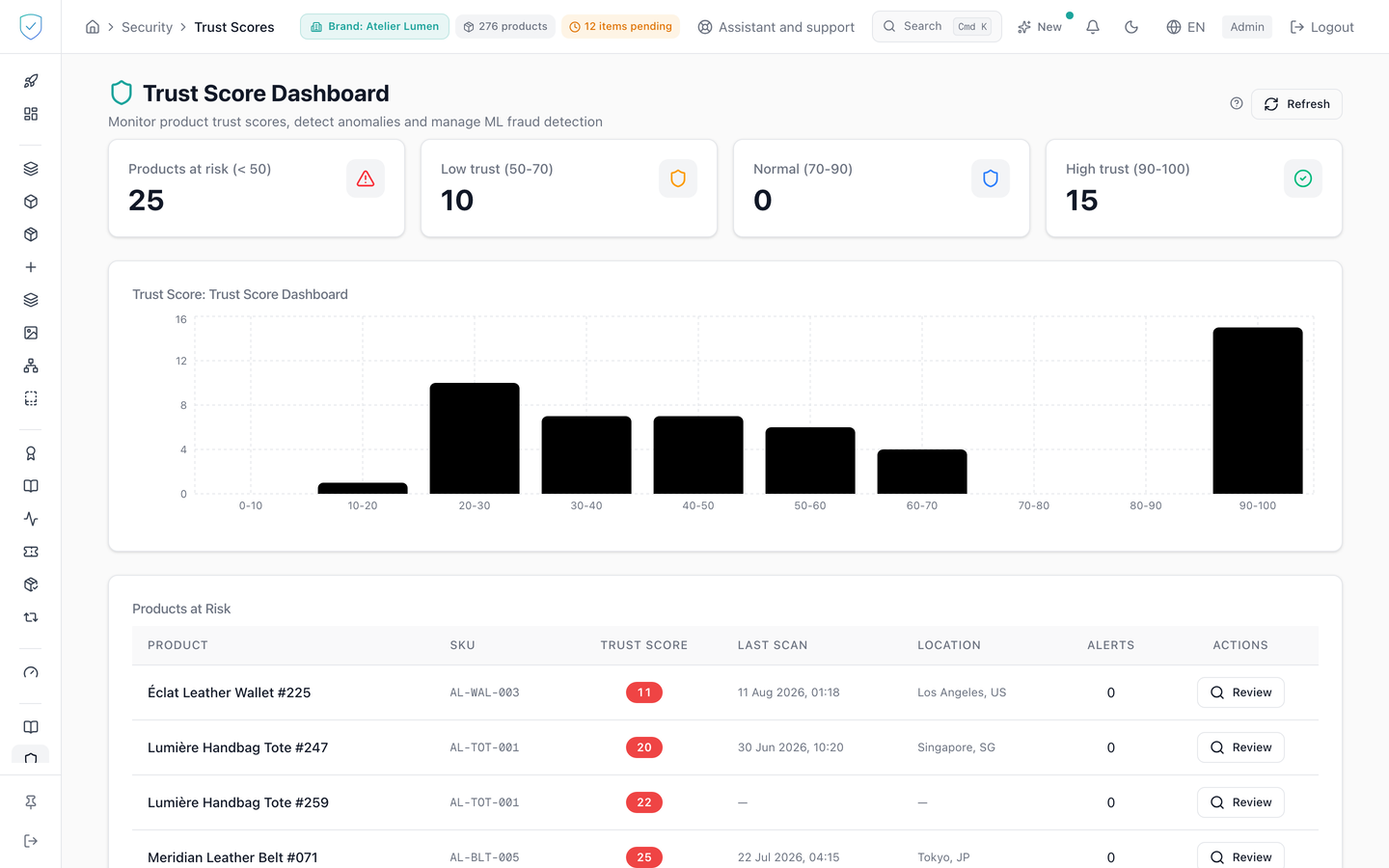
The "Trust Score Dashboard" header, a help bubble and a "Refresh" button. The help bubble states that scores are computed from 13 signals, among them NFC cryptographic validation, geolocation and scan frequency.
Four counters: "Products at risk (< 50)", "Low trust (50-70)", "Normal (70-90)", "High trust (90-100)".
A distribution histogram in ten bands of ten points, red below 50, amber below 70, blue below 90, green above.
A "Products at Risk" table: Product, SKU, Trust Score, Last Scan, Location, Alerts, Actions. It keeps only products whose score is strictly below 70, from the lowest up, within the 50 products requested. The location reads "city, country", or the country alone when the city is unknown. The Alerts column counts the scans of that product already labelled as fraudulent.
A "Recent Scan Features" table: Time, Product, Score Delta, Reasons, Fraud Label, Actions. It covers the 20 most recent scans. Reasons appear as tags: CMAC invalid for a rejected signature, CTR replay for a replayed counter, Geo impossible when the speed implied between two scans exceeds what a physical object can travel, Burst for an unusual run of scans over the last hour, Multi-wallet when several distinct wallets claim the same tag.
#What you can do here
Reload the data with "Refresh". The button is disabled and spins while loading.
Open an at-risk product with "Review", which takes you to the catalogue with the product name already entered in the search field.
Label a scan as fraud with the red cross, or as legitimate with the green tick. Both buttons are disabled while sending. These labels make up the training set for automatic detection.
#What governs access
You must be signed in and an administrator. Otherwise the console replaces the page with "Unauthorized. Please log in at www.sealtrust.io (nouvel onglet)." and a sign-in button. No plan feature is required.
Scores and scans are limited to the brands you have access to. Labelling a scan assumes that scan belongs to one of them.
#What the screen refuses
A scan with no brand, or attached to another brand, is refused with the message "Scan feature not found", exactly like an unknown scan identifier.
Burned products are set aside from the score list.
If both data calls fail, the page shows an empty table. Only a complete outage triggers a red banner.
With no product below the 70 mark, the table shows a green tick and "No products at risk: all scores are above 70." With no scan recorded, the second table shows "No scan features recorded yet."
Was this page helpful?
Your answer opens a pre-filled email in your mail app, addressed to contact@sealtrust.io. You read it over before sending it.