

The multi-signature vault
Track your brand's Safe vault transactions, add your signature to them, and broadcast on chain the ones that have reached their threshold.
When your brand has an active multi-signature configuration carrying the matching role, minter for a mint, burner for a burn, a mint or a burn can be proposed to the brand's Safe vault instead of going straight on chain, and it then gathers the number of signatures set by the vault threshold. With no such configuration, the operation goes straight out on the platform signature alone, nothing is proposed to any vault, and this tab shows "No multi-sig configured for your brand". Erasing a tag is an exception: when it burns the token, it never goes through the vault. This tab shows the vault configuration and the transaction list. It is where you add your signature, then broadcast on chain a transaction that has reached its threshold.
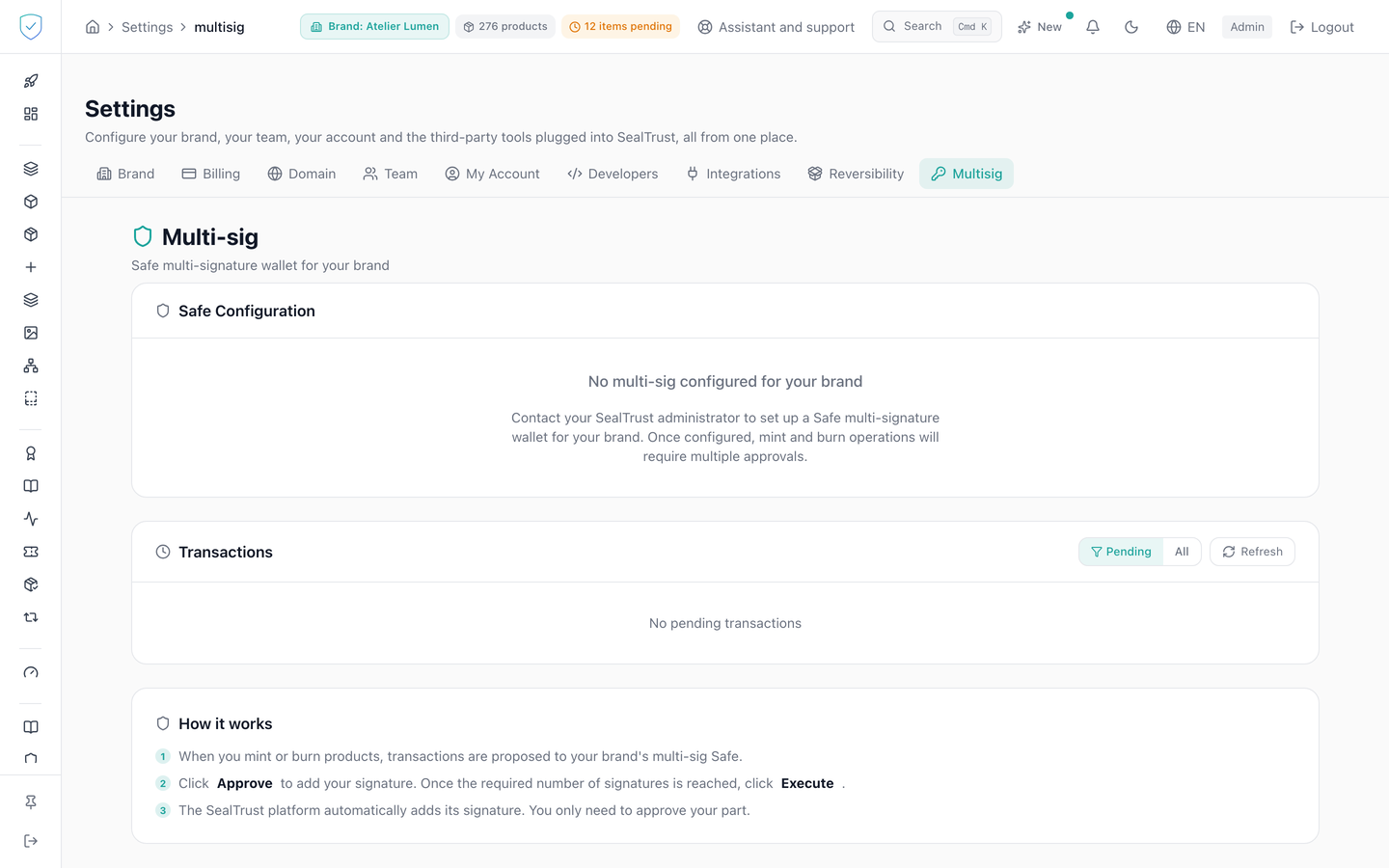
#What the screen shows
- A "Multi-sig" header with the subtitle "The brand's multi-signature Safe". The whole screen is in French in the French console.
- A "Safe Configuration" section: the vault address, truncated and copyable, the Chain ID, the threshold as "2 of 3", and the status.
- Three contract role badges, Minter, Burner and Admin, then an "Owner Wallets" table giving the address and the label of your brands' wallets: it follows the brand chosen in the top bar, and when none is chosen it lists the wallets of every brand on the account, not those of a single one picked at random. The SealTrust signing wallet is not listed there, although it counts in the owner number shown next to the threshold.
- A "Transactions" section with a counter, a Pending or All filter, and a Refresh button. The Pending filter hides transactions already executed.
- A table of six columns: Type, Status, Confirmations, Proposed, Safe TX Hash, Actions. The type names the operation: "Token creation", "Batch token creation", "Token destruction", "Transfer" or "Claim"; an operation the console does not know yet reads "On-chain operation", never its internal code. The status: "Pending", "Ready to execute" or "Executed". The signature counter is shown as "signatures gathered out of threshold" and turns green as soon as the threshold is reached.
- An expandable row showing the transaction payload, when there is one.
- A "How it works" section in three steps.
- A brand selector, when the account is attached to several brands.
#What you can do here
- Add your signature with "Approve". A browser confirmation opens first, naming the operation type.
- Re-sync the signatures with "Sync", broadcast with "Execute" a transaction that has reached its threshold.
- Switch between pending transactions and all transactions, and refresh by hand, on top of the automatic refresh every 30 seconds.
- Copy the vault address, a wallet address, or a transaction hash.
#What controls access
- The "Multisig" tab is hidden for the basic and DPP profiles, for a reseller's client brand and on the Compliance offer. Opened by its address in those last two cases, the page only says that the tab does not apply to the selected brand. Otherwise, the only condition set is an authenticated administrator session.
- The buttons depend on the transaction state. "Approve" only appears on a transaction awaiting signatures, "Execute" only on a transaction ready to broadcast, and "Sync" disappears on a transaction already executed.
- Broadcasting demands two things: retyping the exact phrase served by the server, and supplying a fresh two-factor code. The server only computes that phrase for an opened transaction, and the screen never rebuilds it. It ties the operation to its target, for example "{op} token {token_id}" or "{op} chip {uid_hash}".
- The second factor is required independently of the brand: the vault threshold can never waive it.
- When your signature brings the threshold up, a message invites you to click Execute and announces those two demands.
- The pending transaction list is paginated: 50 rows by default, 200 at most.
#What the screen refuses
- No vault configured: "No multi-sig configured for your brand", followed by an invitation to contact your SealTrust administrator.
- Transaction outside the account's scope: "Access denied to this transaction".
- Transaction that does not exist: "Pending transaction not found".
- Confirmation phrase missing or wrong: the broadcast is refused before any call to the chain. Same refusal for a two-factor code that is missing, invalid or not enrolled.
- Phrase unreadable on the server side: "Could not read the sentence to retype from the server, so nothing was sent."
- Network fees above the ceiling we accept to pay: a message that starts with "GAS_PRICE_ABOVE_CAP". Nothing was sent and the transaction stays ready to broadcast. Click Execute again in a few minutes, with a new two-factor code.
- Registering or deploying the vault of a brand in anchored mode whose pieces still wait for their token: 409
ANCHORED_UNITS_WITHOUT_TOKEN, nothing is sent, and the refusal is written to the audit log. The token of those pieces is created on their claim by a single signature (pieces registered by lot). - Brand on the Compliance offer: approving or broadcasting a transaction that mints, burns or transfers a piece answers 403
OFFER_EXCLUDES_IDENTITY, even when it was proposed before the change of offer. Nothing is sent. See Compliance, or Compliance + Identity. - No transaction to show: "No pending transaction" or "No transaction", depending on the filter.
Was this page helpful?
Your answer opens a pre-filled email in your mail app, addressed to contact@sealtrust.io. You read it over before sending it.