

The GS1 vocabulary
The read-only mapping table between internal passport fields, GS1 terms and Schema.org terms.
The regulation requires passport data to be expressed in a standardised vocabulary. This screen shows, field by field, which GS1 term and which Schema.org term each internal field maps to, with its definition and its unit of measure. You open it to check how a passport is filled in, or to wire up a third party system. The mapping answers article 10(1)(d) of the ESPR.
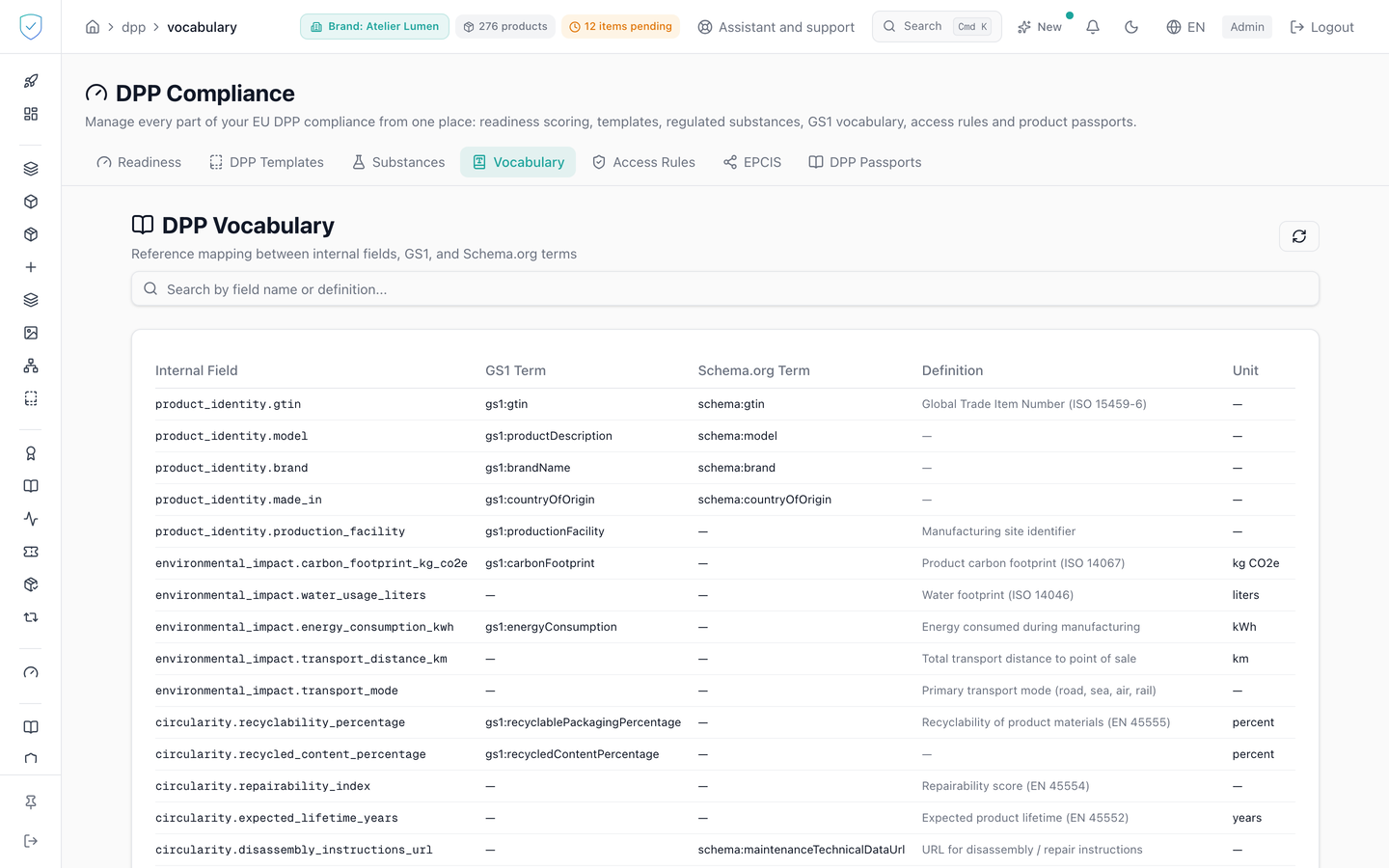
#What the screen shows
- A DPP vocabulary header, a subtitle about the mapping between internal fields, GS1 and Schema.org terms, and a refresh button.
- A search field prompting for a field name or a definition.
- A five column table: internal field, GS1 term, Schema.org term, definition, unit.
- The internal field is shown in a monospaced font. A long definition is visually truncated.
- A missing value is replaced by a dash. The internal field itself carries no such fallback: it is shown as it is.
- Under the table, a counter showing how many entries are displayed out of the total, the first number being the rows the filter lets through and the second the total loaded. The counter only appears if the filter lets at least one row through.
- A no matching entry message when the filter returns nothing, and a no vocabulary entry available message when the table is empty.
#What you can do here
- Filter the table as you type. The filter works in the browser, on the entries already loaded, and looks at two things only: the internal field name and the definition. It searches neither the GS1 term nor the Schema.org term, so typing a GS1 term brings back nothing.
- Reload the table with the refresh button.
#What governs access
The tab sits behind the DPP workspace profile guard, which excludes the basic brand profile.
The table is the same for every brand. It is served with no brand parameter and no tenant filtering, so what you read here is the platform reference, with nothing specific to you.
#What the screen refuses
No write action exists on this screen: no creation, no editing, no deletion. It is a reading page, the only interaction being the filter and the reload.
If loading fails, a red banner shows the message returned by the server. An unknown field queried through the API raises no error: the mapping comes back empty.
Was this page helpful?
Your answer opens a pre-filled email in your mail app, addressed to contact@sealtrust.io. You read it over before sending it.