

Your account
Turn on two-factor authentication for your own account, keep your backup codes, regenerate them or switch the second factor off.
This is the only settings tab devoted to your own account. It holds one thing: two-factor authentication for your account. You open it to add a second factor, to replace your backup codes, or to remove the second factor from an account.
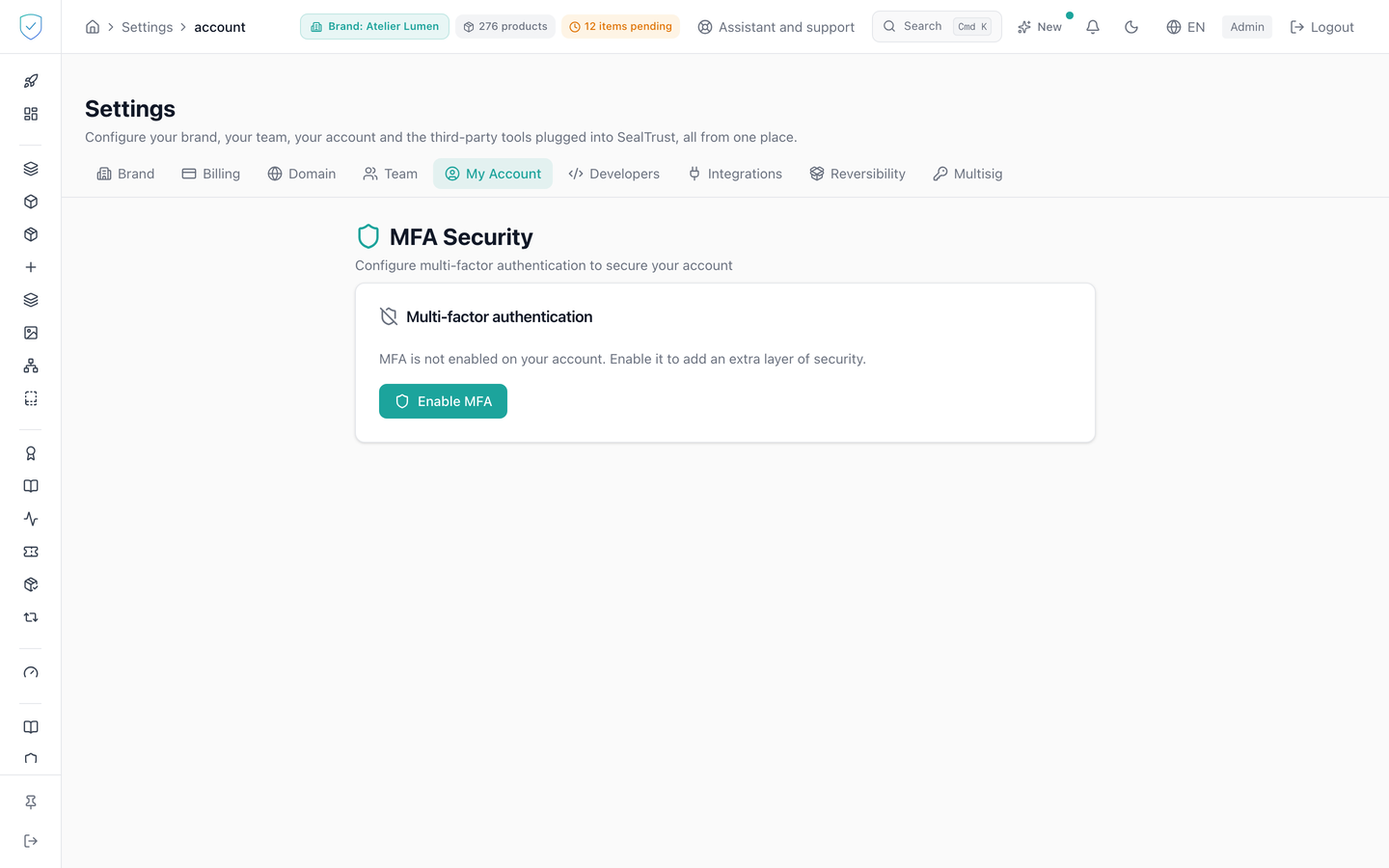
#What the screen shows
- During setup, a QR code 192 pixels wide, encoding the
otpauthaddress actually produced by the server. - Under the QR code, a collapsed link for people who cannot scan, which reveals the secret key and the
otpauthURI. - An input field for the 6 digit code from your authenticator application.
- Once the second factor is active, the backup codes on a 2 column grid.
#What you can do here
- Start the setup, then scan the QR code with an authenticator application.
- Copy the secret key by hand when scanning is not possible.
- Validate the first code to switch the second factor on.
- Regenerate the backup codes, by typing a code from your application again.
- Switch the second factor off, by typing a code from your application again.
#What controls access
- The code field only accepts digits. Any other keystroke is wiped as you type, and the value is cut to 6 characters.
- The three buttons for validating, regenerating and switching off stay disabled until their field holds exactly 6 characters.
- Starting the setup turns nothing on. The server only stores an encrypted secret. Activation happens at the moment you validate your first code.
- The server produces 10 backup codes of 10 alphanumeric characters each.
- Regenerating replaces the whole previous list. The old codes stop working.
- Switching off erases the secret, the backup codes and the activation date.
#What the screen refuses
- Starting the setup again while the second factor is already active is refused: "MFA is already enabled. Disable it before setting it up again." You have to switch it off first.
- Validating a code when no secret was requested beforehand is refused.
- Switching off or regenerating while the second factor is not active is refused, with a message saying MFA is not enabled.
- Regenerating the backup codes requires a valid code. Without it, the list is not replaced.
Was this page helpful?
Your answer opens a pre-filled email in your mail app, addressed to contact@sealtrust.io. You read it over before sending it.