

A batch's detail page
The control desk of a run: its minting progress, its encoding jobs, its products, and the buttons that mint, prepare the QR codes and retry failures.
On this page
This is where a run is followed and where the production steps are triggered. You open the page by clicking a row in the batch list, or in a model's recent batches.
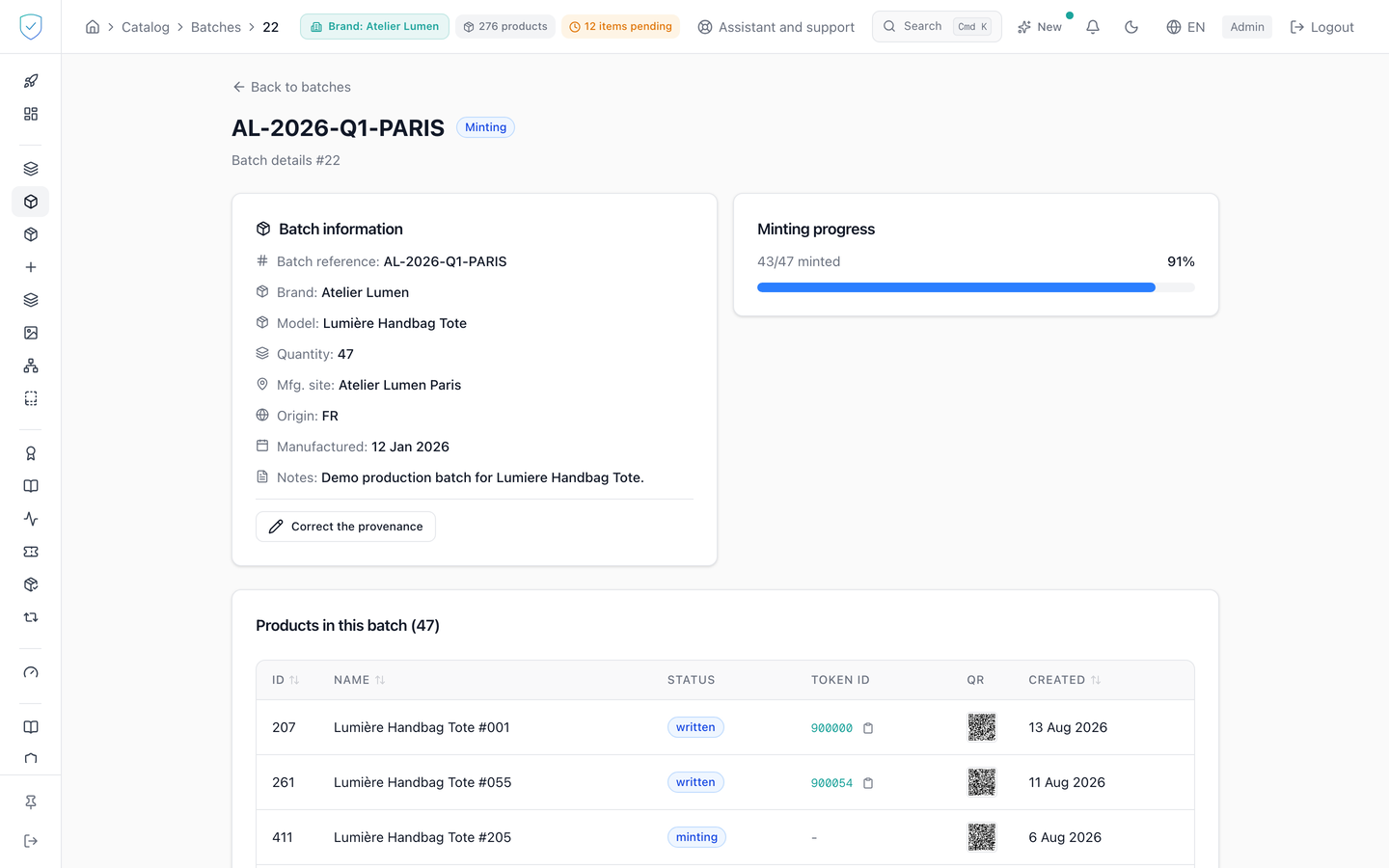
#What the screen shows
The brand and the model are shown by their name, which the server resolves before returning the page.
Minting progress leaves withdrawn products out of the count. Superseded products are counted separately and flagged in a warning, outside the bar.
The product table shows 20 rows per page by default, with a QR thumbnail asked for at 100 pixels, the smallest size the service accepts. Its header carries an "Add units to this batch" link, to the product creation screen: this page creates no unit of its own, and a batch left empty has nothing to anchor. Next to it, "Attach an existing unit" opens the list of this brand's units that belong to no batch, to tick and attach. On a batch that is already anchored the button is absent: the page states the reason instead, the Merkle tree is frozen at anchoring time and the root written on chain cannot be rewritten.
#On the blockchain
The "On the blockchain" card says, in one sentence, what the blockchain holds for this batch. It is the same for every account of the brand.
For a batch minted in anchored mode (pieces registered by lot), it shows "Recorded on the blockchain on …" with the link to the transaction and the gas used, or "Waiting to be recorded on the blockchain. It happens automatically within 1 hour: there is nothing to do.". It recalls what the record proves: the pieces' serial numbers existed on that date and have not changed since, and each piece gets its own token when its buyer claims it. "Show the technical proof" shows the root of the batch and the transaction; each piece's proof is on its public page. The progress then counts the pieces as "registered".
For a batch minted piece by piece, it says that each piece has its own token, created when it is minted, and how many pieces are recorded. If the whole batch was recorded as well, it says so, with the link to the transaction.
A superadmin account also sees the fee paid in ETH, the reason a send was refused and, on a batch minted piece by piece, the "Record the whole batch (superadmin)" card: "Compute the cost", then "Anchor on Base" after confirmation. Nothing is sent before that confirmation.
#What you can do here
Mint the batch with "Mint the batch (grouped)", which goes out in grouped mode.
Tick "Issue a purchase code for each piece" first so that each piece gets the code of the "purchase code required" rule (the claim rules). The box is never ticked in advance. The codes come in the QR archive, in the purchase_codes.csv file: for each piece, the name of its QR file, its serial, its code and its status. The first download that finds the piece minted contains its code; later ones leave the code column empty and give only the status (live or used): a code cannot be read again, it is re-issued from the claim rules screen. A brand on the Compliance offer cannot tick this option: 403 OFFER_EXCLUDES_IDENTITY. The same request can start from the creation screen, for QR pieces of one batch (create a product): their codes land in this same archive. The file is UTF-8 with a byte order mark (BOM), so that Excel and Numbers read accents as they are. Each QR file of the archive has an ASCII-only name: qr_, the piece's name in lower case, without accents or punctuation, cut at a word past 40 characters, then its serial, for example qr_eau-de-parfum-ambre-cedre-50-ml_MWVCRK3008KY.png.
The codes prepared here point to your brand's own domain if you have declared one and it is verified, to your reseller's shared domain if you are one of its client brands and it is verified, to sealtrust.io otherwise. ⚠️ Check this before starting a print run: a printed code cannot be corrected afterwards.
Prepare the codes with "Prepare the QR codes". That preparation mints nothing: an item with no transaction reference is counted and left as it is. When everything was already prepared, the screen says so instead of showing zero: "The {n} QR code(s) of this batch were already prepared. Download them below."
Download the QR archive, retry failures with "Retry {n} failed item(s)", open the encoding wizard or the encoder with "Encode tags", and cancel an encoding job.
Every QR archive served leaves one line in the audit log: the account, the date, the IP address, the batch's brand and the number of pieces. A refused download leaves none. This trace never blocks the download.
⛔ If your codes carry your own domain, downloading the archive freezes that domain for good. A label glued to an object cannot be corrected: changing your address afterwards would turn every one of those labels into a dead link. So the first download closes the door, exactly as the first chip encoded does. Until it is closed the archive is refused and the screen asks you to retype your domain; once it is closed, later downloads ask for nothing. On a reseller's shared domain, that is the domain to retype, and it is the one that freezes, for all of the reseller's brands at once. A brand whose codes carry sealtrust.io is never concerned: nothing is asked of it and nothing is frozen.
Export the lot's recall list from the "Recall: trace this lot" card: every unit with its B2B order, its distributor and territory, its last consumer scan, where that place comes from and its claim, as CSV or Excel. The detail is described in the reports, which also preview it. Every export leaves one line in the audit log.
Correct the provenance. The form only sends the fields actually filled in, so as not to erase a field left empty, and every change is recorded in the admin log.
#The batch passport
The "Lot passport" card gives this batch its own passport, the one every item of the batch shares. It is read at the GS1 link of the batch, /01/{gtin}/10/{lot}, shown at the top of the card: the GTIN of the model, then the number of the batch.
"Create from the model" opens the editor on a draft the server prepares: the data of the model's published passport, plus the production date, the site and the country of origin of this batch, and its GTIN and number. You complete what is specific to the batch, for example its substances, its sites or its operators, then you save a draft or you publish. Nothing is published without your click.
Once published, the passport is sealed and anchored on chain like any passport, without any token being created. The page of each item of the batch then shows it. The card draws no QR code for the batch itself: each item carries its own QR code, which you print with the batch's QR archive. A batch code already printed, which leads to /01/{gtin}/10/{lot}, still shows this passport. As long as no version is published, the link of the batch shows the model's passport.
A brand on the Compliance offer prints the code of the batch, the same on every product of the batch. Once the batch passport is published, the card shows that QR code, which leads to /01/{gtin}/10/{lot}, with "Download the QR code". Before that, it says "Publish the passport to get the code to print.". On that offer, no mint or encoding control appears on the page: no "Add units to this batch", no "Attach an existing unit", and no mint progress for a batch without products.
The card offers nothing, and says why, when the model has no valid GTIN or when the batch number does not fit in a GS1 link: more than 20 characters, a slash, a % sign, a space or an accented letter.
#The scan coverage
The "Scan coverage of this lot" card tells how many minted units in service of this lot a consumer scanned at least once, and how many never were. It then splits the lot's units shipped in a B2B order by distributor: for them, only scans made after picking count. The "See on the scan map" link opens the scan map filtered on this lot. The card only appears when at least one unit of the lot carries identity.
#Refresh
A "Refresh" button asks again for the state of the batch, of its products and of its encoding jobs. The screen never reloads as a whole by itself, deliberately: a full reload makes the page jump under the cursor while you read. One exception, with no jump: after "Mint the batch (grouped)", the page re-reads the encoding jobs every 3 seconds, in place, until no unit is left ready (2 minutes at most). The mint button then goes away by itself.
An action that fails leaves the page on screen: the reason shows in a banner at the top, in the console's language. When the mint is refused because no unit is ready, it has usually already run: the page says so and re-reads the jobs.
Minting and encoding run in the background: click "Refresh" to see where they are. The status of each product and of each encoding job is shown in the console's language: "Minted", "Ready", "Running", "Failed". A status the console does not know yet is shown as "Unrecognised status", never under its technical name. The counters of an encoding job follow the same rule: "3 in all", "3 ready", "1 being written", "2 written", "1 failed".
#What gates access
The screen reads the batch's authentication method. A batch explicitly set to QR only sees neither the wizard nor "Encode tags". A batch whose method was never recorded is treated by default as carrying a chip.
Several controls also require a brand profile allowed to mint and encode, which rules out the basic and dpp profiles: the wizard and "Encode tags", which also require an encoding job; "Mint the batch (grouped)", which requires a ready item; "Prepare the QR codes", which requires an encoding job and a product already minted; "Correct the provenance", with no further condition.
The archive download only appears once at least one unit is minted: before that there is no QR code to put in the archive. It carries no profile condition. The retry button, for its part, counts both failure states, permanent and transient, because the retry handles both.
#What the screen refuses
Minting with no ready item: 400 "No items in ready_to_scan status to mint". Beyond 10000 ready items, it answers 400 and asks for the batch to be split. Before minting, the server checks brand by brand the active subscription, the cap of a trial account and the allowed authentication method.
The archive holds one code per minted piece. When no piece has an address to print yet: 404 "Aucune pièce de ce lot n'a encore d'adresse à imprimer. Attendez la fin de la frappe, puis utilisez « Préparer les QR à imprimer »." (a French server message, shown as is), and this answer comes before any request to retype the domain. The archive of a brand on the Compliance offer: 403 OFFER_EXCLUDES_IDENTITY, since this offer prints the code of the lot and not that of every piece. Beyond 50000 codes: 413. A download error is read and shown on screen instead of arriving as a file.
The archive that would freeze your domain, until it has been retyped: 409. Retype the domain exactly as it is registered on your brand. A domain retyped wrongly: 400. The refusal never reminds you of the expected domain, otherwise copying it back would be enough and the check would verify nothing. No label is produced until that check has passed.
Retrying with no failed item: 400. An item already carrying a transaction reference is never put back.
Cancelling a job that is no longer in flight does nothing and says so. Otherwise it fails the items still ready, writing or awaiting multisig, with the reason manual_cancel, and leaves untouched those already written or minted.
Renaming the batch code: 409 as soon as the batch carries a Merkle root, computed or anchored, or pieces recorded in anchored mode. That code goes into the sealed metadata and can no longer change. Same refusal as soon as the batch has a published passport: its number is printed in the GS1 link of the batch and sealed in the passport's data.
Changing the model's GTIN: 409 as soon as one of its batches has a published passport, for the same reason. The GTIN is printed in the GS1 link of the batch and sealed in the passport's data. The Excel import then refuses the row and names it, and a catalogue sync keeps the old GTIN and writes it to the log.
Publishing a draft without changing it: the server reads it again against the batch as it is at publication time. If the batch was renamed, or the model's GTIN changed since the draft, publication is refused with a 422 that quotes the old value. Create the draft again from the model, or correct the GTIN and the lot number in the product identification.
Publishing the passport of a batch under a GTIN that another brand already publishes, through its model passport or one of its batches: 409. A GTIN belongs to one brand, and two brands publishing under the same code would make the address unreachable for both.
In anchored mode, the mint refuses with a 409, creating nothing: a piece that is not QR-only (ANCHORED_IS_QR_ONLY), pieces of several batches (ANCHORED_ONE_LOT_PER_MINT), a piece without a batch (ANCHORED_NEEDS_A_LOT), a piece of another brand (ANCHORED_ONE_BRAND).
Deleting a batch whose pieces are recorded in anchored mode: refused, including by the forced deletion, like an anchored batch.
Deleting a batch that has a published passport: refused, including by the forced deletion, with the reason "has a published lot passport". The passport drafts, never published, go with the batch.
Was this page helpful?
Your answer opens a pre-filled email in your mail app, addressed to contact@sealtrust.io. You read it over before sending it.