

Buyback
The buyback offers made by the brand: follow them, complete an accepted offer by recording the payment reference, or cancel it.
This screen follows the buyback offers a brand has made on items held by its customers. You see there the amount offered, the customer concerned, the state of the offer and its expiry date, and you complete an accepted offer or cancel it. The offers themselves are created from a product detail page.
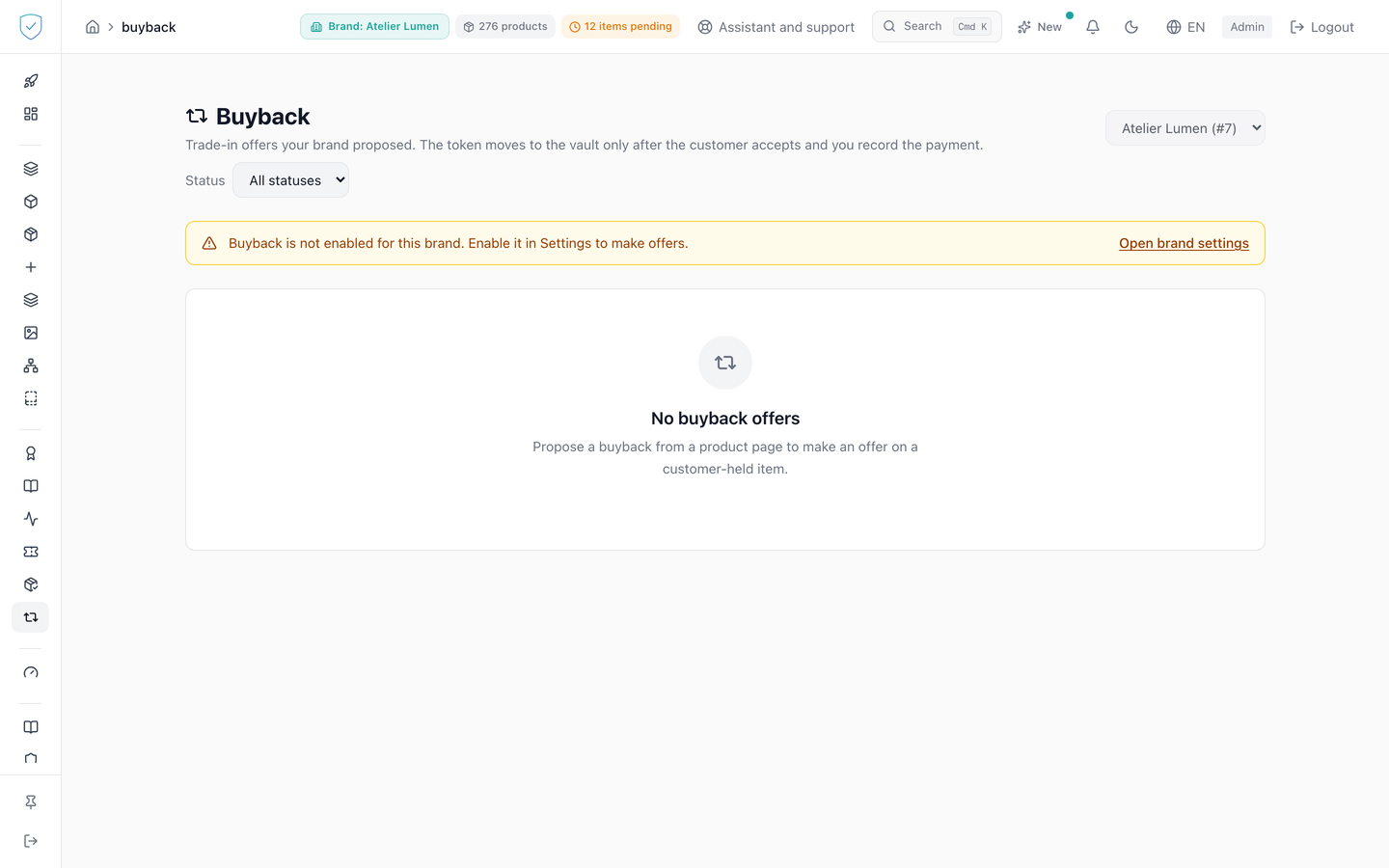
#What the screen shows
A brand selector, and the reminder that the token goes to the vault only after the customer accepts and the payment is recorded.
A "Status" filter with "All statuses" then the six states: Offered, Accepted, Completed, Declined, Expired, Cancelled. Those two filter labels are taken from the returns screen.
A table with eight columns: ID, "Product", "Customer", "Amount", "Status", "Offered", "Expires", "Actions". The amount is recorded in cents and displayed in the currency of the offer. The badge is green for "Completed", orange for "Accepted", red for "Declined", neutral for "Expired" and "Cancelled". The customer address is stripped of any markup before display. Each row links to the detail page of the product concerned.
An orange banner when buyback is not enabled for the brand, with an "Open brand settings" link. It only appears on a negative certainty. With no offer: "No buyback offers".
#What you can do here
Filter the offers by status and by brand. The list is not paginated: it returns every offer of the brand.
Complete an accepted offer with "Complete", by entering a "Payment reference", then "Record payment & complete". The dialog reminds you that completion executes the transfer to the brand vault. The full transfer validation is replayed at that moment. The movement is recorded in the name of the holding customer registered on the offer; if that account no longer exists, it is recorded in the name of the signed-in administrator.
Cancel an offer with "Cancel", after a browser confirmation. Open the detail page of the product concerned.
#What governs access
This screen serves the identity of pieces. For a brand on the Compliance offer, its menu entry stays visible but locked, marked "Identity", and the server refuses its operations with the code OFFER_EXCLUDES_IDENTITY (the two offers).
A signed-in administrator account, otherwise the screen only shows "Loading buyback offers…". The "Buyback" sidebar entry is visible for every brand profile, and no plan option is required. An administrator only sees the offers of the brands the account has access to.
"Complete" stays inactive as long as the offer is not at the "Accepted" status, with the "Only a customer-accepted offer can be completed." tooltip, and the dialog submit button stays inactive as long as the payment reference is empty. "Cancel" only appears on an "Offered" or "Accepted" offer. Completion requires the brand to have enabled buyback.
This screen creates no offer. An offer is valid for 14 days by default, and its validity is set between 1 and 90 days when it is made.
#What the screen refuses
Completing an offer the customer has not accepted: 409, "Offer not completable", the guardrail matching the one on returns. For a brand that does not offer buybacks: 403, "This brand does not offer buybacks". With no validated transfer payload: 409. When a transfer is already running on that token: 409, "Buyback already in progress for this token. Retry shortly.".
Cancelling an offer already completed, declined, expired or cancelled: 409, "Offer not cancellable". An empty payment reference is refused by the schema, which also caps it at 200 characters. An offer not found, or of an unauthorised brand: 404, the same answer in both cases. Proposing a buyback on a product of an unauthorised brand: 404, the same answer as an unknown product. An offer already open on the same product prevents stacking another one: 409.
SealTrust never moves money. The platform records the reference of a payment made elsewhere, it makes no payout.
Was this page helpful?
Your answer opens a pre-filled email in your mail app, addressed to contact@sealtrust.io. You read it over before sending it.