

EPCIS events
View, download and re-import a brand's lifecycle events in the GS1 EPCIS 2.0 format.
EPCIS 2.0 is the GS1 standard format for describing what happened to a product along its chain. This screen exposes your brand's lifecycle events in that format: you load them to read them, you download the full document to send it to a partner, you re-import a document that came from outside.
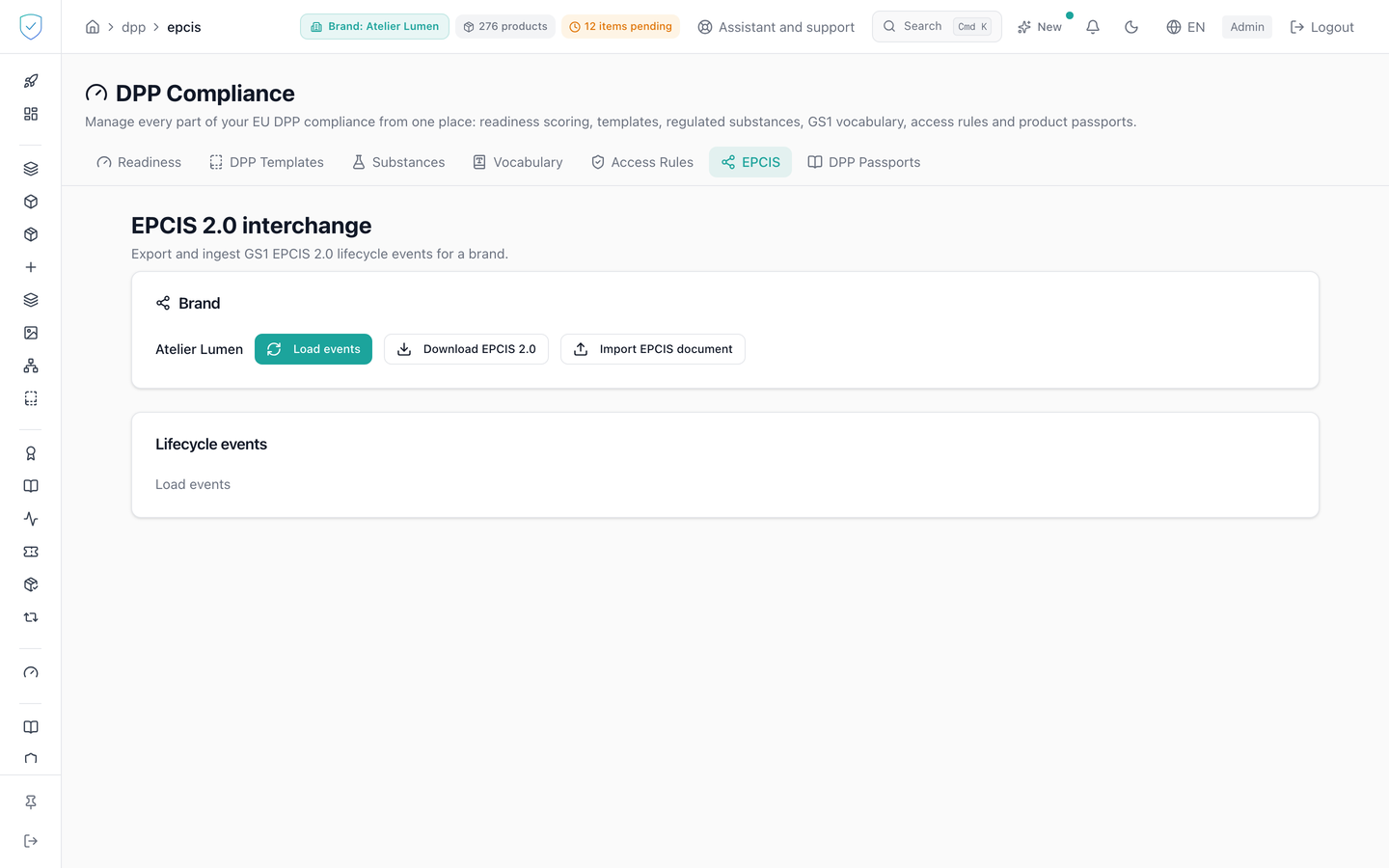
#What the screen shows
- An EPCIS 2.0 exchange header and a subtitle about exporting and importing a brand's GS1 EPCIS 2.0 lifecycle events.
- A brand card showing the name of the brand attached to the account, with no way to change it.
- Three buttons: load events, download EPCIS 2.0, and import an EPCIS document.
- A lifecycle events card with a six column table: event type, EPC, event date, business step, disposition, event nature.
- The EPC is shown in a monospaced font, and only the first one in the list is displayed.
- After an import, a green banner giving the number of events imported and the number of duplicates skipped.
- A message saying there is no lifecycle event yet when the brand has none.
#What you can do here
- Load the brand events and read them in the table.
- Download the full EPCIS document, in a file named
epcis-brand-<id>.json. - Pick a JSON file on your machine and have it ingested. The list is reloaded right after. The picker is reset after each choice, so the same file can be selected again.
Loading the events and downloading the document go through the same export: each of the two actions leaves one line in the audit log, with the account, the date, the IP address and the brand. This trace never blocks the export.
#What governs access
The tab sits behind the DPP workspace profile guard, which excludes the basic brand profile. The scope is fixed to your own brand, there is no selector, and the three buttons stay disabled until a brand is resolved.
The file picker only accepts the application/json type. The export returns 200 events by default, with a ceiling of 1000. Ingestion is all or nothing: if a single item of the document is invalid, nothing is written.
#What the screen refuses
- A brand outside your scope is refused with "Brand not found", deliberately the same message as a brand that does not exist, to stop anyone guessing which brands exist.
- A file that cannot be read as JSON is not even sent: the screen says the file could not be read as JSON.
- An invalid EPCIS document is refused with "Invalid EPCIS document" and the list of errors, which the screen appends after the message.
- Units with no usable identifier are left out of the export without raising an error. Their count comes back in a response header, it does not appear on screen.
Was this page helpful?
Your answer opens a pre-filled email in your mail app, addressed to contact@sealtrust.io. You read it over before sending it.