

Distribution
Measure your product activations by retailer and by country, watch parallel distribution, and administer your retailers and their capture link.
On this page
The "Distribution" screen ties every product activation to a place and, when it was captured in a store, to a retailer. Six tabs share the work.
#What the screen shows
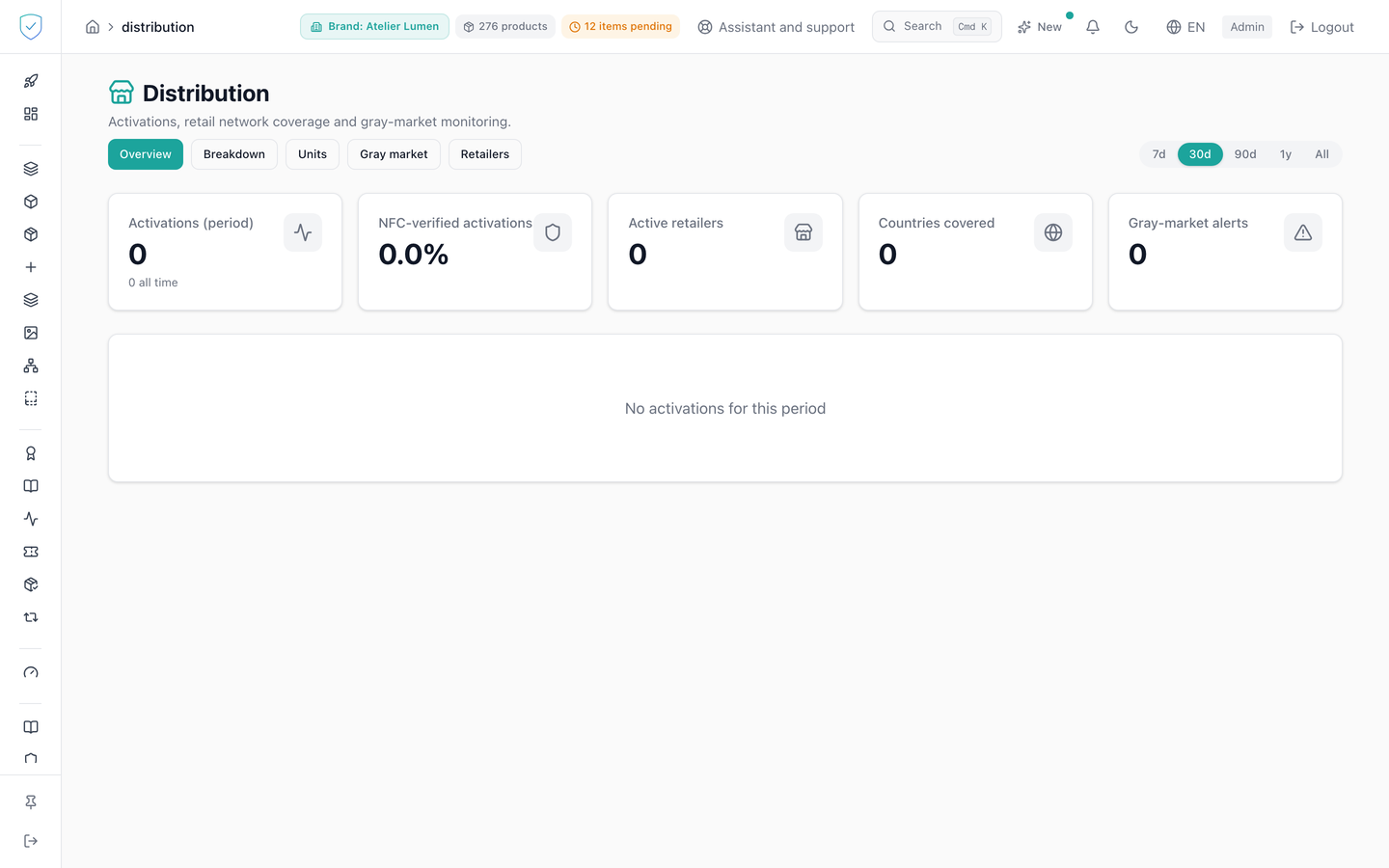
The six tabs are "Overview", "Breakdown", "Units", "Gray market", "Retailers" and "Shipments". The screen opens on "Overview". A pill period selector, 7d, 30d, 90d, 1y and "All", only appears on the first two.
"Overview" lines up five indicators: "Activations (period)" and its "all time" total, "NFC-verified activations" as a percentage to one decimal place, "Active retailers", "Countries covered" and "Gray-market alerts". Below them, the "Activations over time" stacked area separates "NFC", "QR" and "Declared sale".
"Breakdown" ranks the 10 top retailers and the first 10 countries, under an
"Activation map". "Gray market" carries the
"Authorized distribution zone" editor, countries as ISO2 pills, the "Zones by
product model" card, then the alert table: the item and its serial number,
the place, "First seen", the number of folded "Scans", the source and the
"Status", with who set it and when. "Retailers" shows each store with its code, its status and its "Capture
link", truncated in the form /r/ followed by the first 10 characters of the
token, and the "Territory" column of a distributor.
"Shipments" lists your B2B orders: the order reference, the distributor, its territory, the number of units in the box, the ship date and the status, "Open", "Shipped" or "Cancelled". An order opens on its page: the "Expected territory", the units allocated, those scanned by a consumer since picking and those "Never scanned", those scanned outside the territory, the cartons or pallets still covering its units (code and the number of units concerned), a "See on the scan map" link filtered on the order, then each unit with who scanned it into the box and its latest consumer scan, "In the territory", "Outside the territory", "Country unknown" or "Not scanned yet". The guide Tie each unit to its order describes the whole flow.
#What you can do here
Change the period of the first two tabs. It is 30 days when the screen opens, and "All" sends no date bound. The curve groups by "Day", "Week" or "Month".
Filter the units on "All sources", "NFC", "QR" or "Declared sale", change the
page size that starts at 20 rows, and export the list as CSV. The file carries
the active filters and is named sealtrust_distribution_units_ followed by
today's date. A retailer or product name that starts with =, +, - or @
is preceded by an apostrophe, so your spreadsheet shows it instead of running
it.
Every export leaves one line in the audit log: the account, the date, the IP address and the brand or brands it covered. This trace never blocks the export. The city and country of an activation by scan come from the DB-IP database, published under the CC BY 4.0 licence: if you republish them, credit "IP Geolocation by DB-IP" with a link to db-ip.com. Those of a sale declared by a retailer are the ones it typed, or the ones on its record.
Compose the authorized zone by typing two-letter country codes, separated by spaces, commas or semicolons. The cross on a pill removes its country. A superadmin picks the brand first: the whole tab, zone, model zones, alerts and export, then works on that brand.
Give a model its own list of countries: it replaces the brand's list for every item of that model. "Follow the brand again" removes it. Every zone change, of the brand or of a model, leaves one line in the audit log; a model's change also shows in its history.
Filter the alerts by status ("All statuses", "Open (new or investigating)" or one status), by country and by confidence level ("All confidence levels", "Weak", "Probable" or "Strong"), change the status of an alert, and export the alerts as CSV. The export takes the brand, status and country chosen, over the last 90 days of first sightings, which the tab says under the button, and writes the reason of each confidence level in the console's language.
Create or edit a retailer among five types: "Boutique", "Corner", "Marketplace", "Distributor" and "Other". A distributor gets a "Territory", its country codes separated by commas: the exclusive contractual zone its units are checked against. It also gets its "Authorised exceptions": one per line, a country code then an optional free label (e.g. "AE Dubai duty free"). A scan from that distributor in a country listed there raises no alert at all, not even weak: this is the right tool for a transit zone, a travel-retail airport, or any other authorised channel that falls outside the usual contractual territory. Every creation or change of a retailer leaves one line in the audit log, with the old and the new territory and the old and new exceptions. Copy the full capture link in one click, regenerate that link, or delete the retailer.
In "Shipments", create an order for a distributor, import a CSV from your logistics provider, open the "Picking page", mark an order as shipped, cancel it, or remove a unit from the box. The picking page works on a phone: pick the order and what a scan names, "One unit" or "A carton or a pallet", then every scan by the camera, a handheld scanner or typing answers at once in green with a high beep, or in red with a low double beep; in carton or pallet mode, the answer gives the number of units allocated at once, and every refused unit with its real reason, grouped and counted.
#Gray-market alerts
A piece tied to a B2B order is judged on its distributor's territory, not on the brand's authorized countries. Its alert names the order, with a link to its page, and the distributor, in the table as in the export.
An alert is born when an item is seen in a country outside its zone, by a verified chip scan, a signed QR code verification or a sale declared by a retailer. Opening the passport page from a printed code, a shared link or a partner's page does not create one: that visit can come from a photo of the code or a link forwarded abroad, and its place is the visitor's network, not the item's. Such visits are still counted on the scan map, never in the alert table.
One alert per item and country in 24 hours, counted from its first sighting.
Later scans of the same item in the same country within those 24 hours only
raise its number of "Scans": Slack, Teams, the console's live notice and the
product.gray_market webhook are sent once. After 24 hours, a new
out-of-zone scan creates a new alert, even when the previous one was
"Dismissed": dismissing an alert closes it, it does not authorise the item in
that country.
Four statuses: "New", "Investigating", "Confirmed" and "Dismissed". Each change
records who made it and when, and leaves a gray_market_alert_status line in
the audit log. "New" and "Investigating" alerts stay in the alerts centre and
in the dashboard's "Needs attention" block.
The overview's "Gray-market alerts" indicator counts the alerts whose first sighting falls in the period. Alerts older than this version were carried over once, one per item and country; QR scans of that time that were not an activation could not be carried over, since nothing told a signed QR apart from a visit of the page.
#An alert's confidence: a signal to qualify, not proof
⛔ An item seen outside its zone is not, by itself, proof of grey-market distribution. A traveller carrying the product abroad, a sale made at a duty-free shop, or simply an imprecise network location (a phone's IP address does not always say the right country) all produce exactly the same out-of-zone scan as an item genuinely diverted. Every alert therefore carries a confidence level, "Weak", "Probable" or "Strong", shown as a badge with its reason in plain words, in the console's language (for example "3 distinct units of order SO-1042 seen in AE."), in the table, in the scan map's popups and in the alerts centre.
The level is computed like this:
- Weak: a single scan, located by network address (IP or Apple Private Relay) — or any case with no stronger evidence (a lone declared sale, an unknown source, or coordinates carried by the address of a signed QR code, which anyone can replay and rewrite).
- Probable: either a GPS-located scan, or at least three distinct units of the same order seen in the same foreign country within 30 days (two brand settings, changeable in the "Confidence settings" card below).
- Strong: at least ten distinct units of the same distributor seen in the same foreign country, spread across at least two orders, within 90 days.
An alert is recomputed every time a new out-of-zone scan arrives, for it or for another alert of the same order or the same distributor: a 3rd scan can raise the two alerts before it to "Probable" too, on top of its own. Every alert whose level just rose then gets exactly one notification (Slack, Teams, the console's live notice, the webhook) — never twice for the same rise, and never for an alert that stays at the same level.
The "Confidence settings" card sets the minimum level that notifies ("Probable" by default): below it, an alert is still stored and shown in the list and on the map, but never reaches Slack, Teams, the live notice or the webhook. It also sets the two thresholds above (the unit count and the window in days, for both "Probable" and "Strong").
To rule out one known, recurring false positive, a distributor can declare exception zones (above, on the "Retailers" tab): a scan in a listed country raises no alert at all, whatever the level. This is the right tool for a transit zone, a travel-retail airport, or any other authorised channel that falls outside the usual contractual territory.
#What conditions access
The "Distribution" entry lives in the "Analysis & Audit" section, with no plan
lock and no profile hiding, and the content waits until the account is
recognized as an administrator. The CSV export is reserved for plans that
include the exports feature: the button is not shown otherwise. The zone applied to a
product is the one on its model when the model declares one, otherwise the one
on the brand. A unit allocated to an order is checked against its distributor's
territory, when it has one. Shipments need the Compliance + Identity offer: on
the Compliance offer, every creation or scan is refused.
Alerts are about items: they are only created, and were only carried over
from older data, for a brand whose offer includes the identity of every item
("compliance_identity"). On the "compliance" offer, setting the brand's or a
model's zone is refused with the code OFFER_EXCLUDES_IDENTITY. Alerts recorded
before a move to that offer stay readable, and the only status change accepted
is "Dismissed", to close them; any other status is refused with the same code.
#What the screen refuses
Deleting a retailer and regenerating its link both require its code to be retyped. A refusal leaves the dialog open and shows "The deletion was refused and nothing was changed." or "The rotation was refused. The current link still works." The deletion refusal states the exact number of activations that would stop naming their point of sale, a link that cannot be restored. A distributor that received at least one shipment cannot be deleted: deactivate it instead.
A code already taken inside the brand is refused with "This code is already used by another retailer". The create button stays inactive until the name and the code are filled in.
The units export is capped at 5000 rows by default and 20000 at most, and gray-market alerts paginate up to page 1000. The alerts export is the "Gray-market alerts" report: 90 days by default, 366 at most, fewer than 50000 rows. The current tab is only restored when the page is resumed after a forced reconnection.
Was this page helpful?
Your answer opens a pre-filled email in your mail app, addressed to contact@sealtrust.io. You read it over before sending it.