

Certificates of authenticity
The brand's certificate register: issue them one at a time or in bulk, find an issued certificate, download its PDF and its QR code, and revoke it permanently.
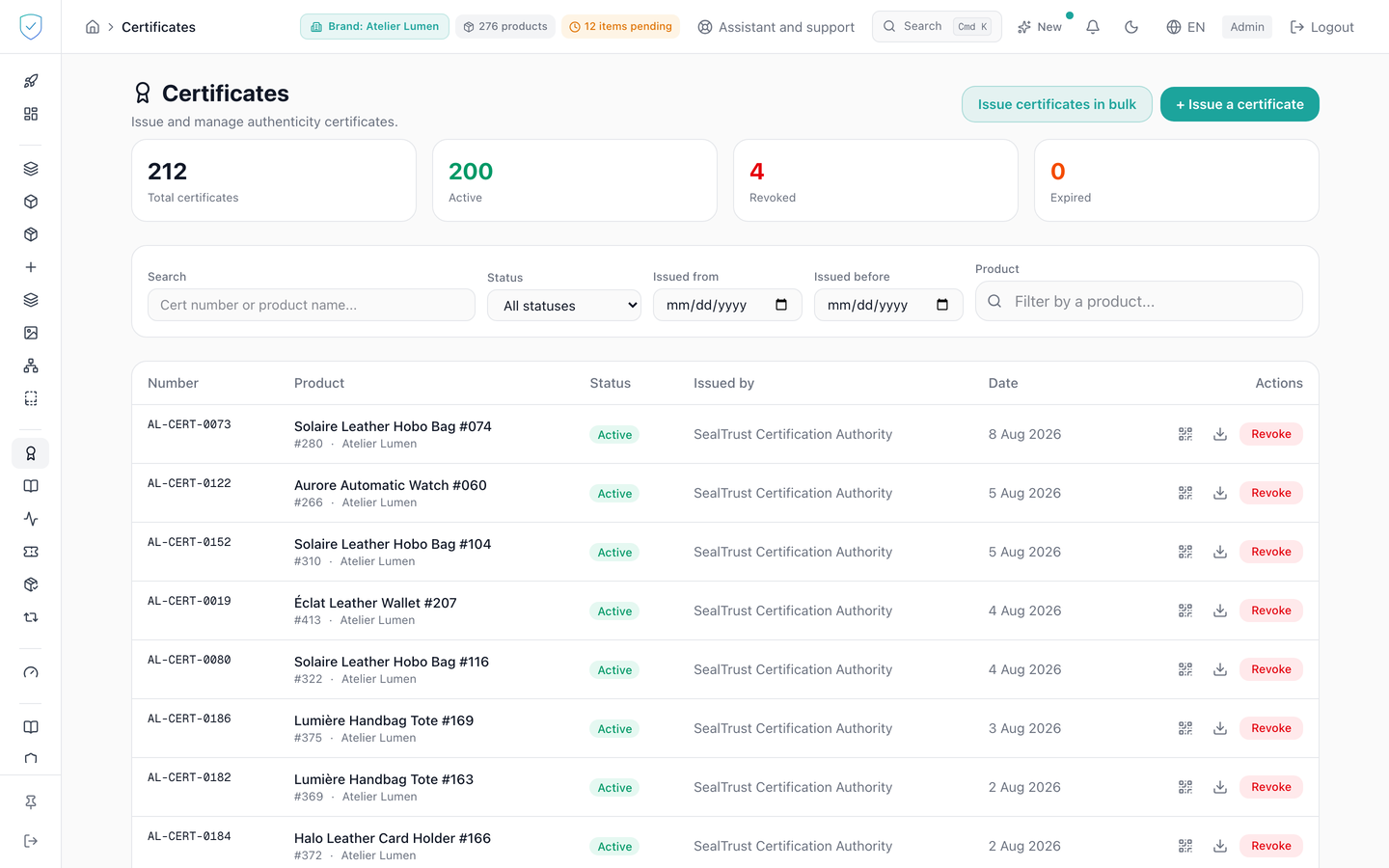
This screen is the register of the certificates of authenticity issued by the brand. You open it to issue one on a given product or on several at once, to find a certificate already issued and download its PDF, or to revoke it. Revocation is permanent.
#What the screen shows
Four counters: "Total certificates", "Active", "Revoked", "Expired". The last three come from separate requests, one per status, independent of the displayed page. A counter the screen could not obtain keeps its previous value instead of falling back to zero.
A filter bar: free search, "Status", "Issued from", "Issued before", a product selector. The piece is picked by the serial printed on it (in full, or by its first four characters at least) or by its name; each result shows the serial first, then the lot code. Then a table with six columns: "Number", "Product", "Status", "Issued by", "Date", "Actions". The badge is green for "Active", red for "Revoked", orange for "Expired". "Issued by" carries the sign-in address of the issuing account. Under the number, two blocks stack up when they exist: "Issuance notes:" in grey, then "Revocation reason:" in red.
The list paginates by 50, and the "Page X / Y" footer only appears beyond that. With no result: "No certificates", or "No certificates match these filters".
#What you can do here
Issue one at a time: choose a product, enter notes and as many "Field name" and "Value" pairs as you want, then "Issue". Arriving from a product record opens this screen filtered on it, with the issue dialog already filled with that product: the address then carries ?product_id=<id> and, to open the dialog, &action=issue.
Open "Issue certificates in bulk", which offers three methods. From an emission batch, the dialog loads at most 50 production batches. From a filtered search, it searches from 2 characters, 250 milliseconds after your last keystroke, in pages of 20, the serial first on each row; once 100 products are checked, the other boxes become inert. In paste mode, one identifier per line or separated by commas. Issuance by product model is not offered.
Filter, then "Reset filters". Download the PDF, addressed by the certificate number. Show the QR code, which opens the certificate page, and download it at 600 pixels. Revoke an active certificate.
#What governs access
This screen serves the identity of pieces. For a brand on the Compliance offer, its menu entry stays visible but locked, marked "Identity", and the server refuses its operations with the code OFFER_EXCLUDES_IDENTITY (the two offers).
A signed-in administrator account, otherwise the screen renders nothing. The "Certificates" sidebar entry is visible for every brand profile, and no plan option is required. An administrator only sees the certificates of the brands the account has access to.
Issuance consumes the plan quota, read on the max_certificates field. In bulk, that quota is checked for the whole batch before the first certificate is created, and the identifiers sent are deduplicated.
"Issue" stays inactive with no product chosen, bulk issuance as long as the resolved list is empty or exceeds 100. "Revoke" only appears on a row whose effective status is active, and its confirmation requires the retyped number and the reason.
#What the screen refuses
Revoking with no reason: 400, code REVOCATION_REASON_REQUIRED. Without retyping the number: 400, code CONFIRMATION_REQUIRED, followed by the consequence, which counts the other active certificates left on that product. A number retyped wrong: 400, code CONFIRMATION_MISMATCH, "What you typed is not the certificate number. Nothing was changed."; the expected number is never repeated. A certificate already revoked is returned as it is.
Unknown product: 404. Product of another brand: 404, the same answer as an unknown product. Quota exceeded: 403, code QUOTA_EXCEEDED. A non-numeric identifier in the pasted list stops everything before the call, on the message "Invalid id:" followed by the offending value. An unknown status as a filter: 422. The list is capped at 500 rows per call.
A validation refusal names the offending field, then the reason: translated into the language of the console for the common cases, taken from the server otherwise.
Was this page helpful?
Your answer opens a pre-filled email in your mail app, addressed to contact@sealtrust.io. You read it over before sending it.