

The sign-in screen
Open a session in the SealTrust admin console, with the code from your authenticator app when your account asks for one.
On this page
This screen opens a session in the admin console. You open it on first access, after signing out, or when the console sends you back to it because your session is no longer valid. It shows on its own, with no sidebar.
It follows the language you chose: all its labels go through the translation module, in both languages, and each version of this page carries its own screenshot.
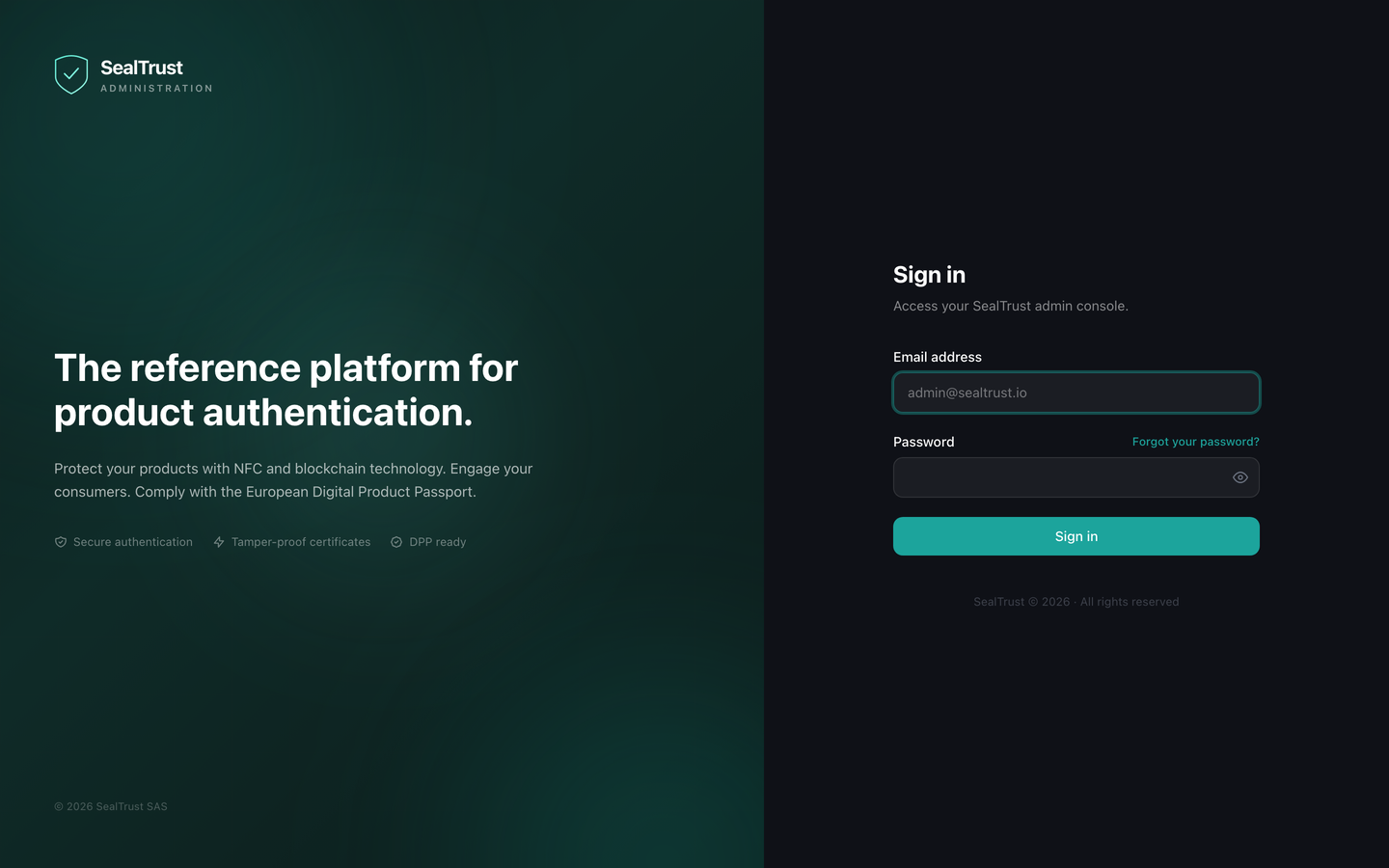
#What the screen shows
On a wide screen, a decorative left panel carries the SealTrust logo and the word Administration.
On the right, the title Sign in, the subtitle Access your SealTrust admin console., an Email address field, a Password field and the Forgot your password? link. The Sign in button becomes Signing in… while the request is being sent.
When the account asks for a second check, the form is replaced: Verification required, Enter the 6-digit code from your authenticator app., the Authentication code field, the Verify button and the way back, ← Back to sign-in.
If your session has ended, an amber banner reads "Your session has expired. Sign in again to pick up where you left off."
#What you can do here
Enter your address and your password, then submit. An eye-shaped button shows or hides the password.
Then enter the code from your authenticator app, or go back to the previous step.
Pick up where you left off: if you were on a console page when the session was cut, you return to it once signed in, scroll position, active tab and form drafts included. Otherwise you land on the dashboard.
#What is recorded
Every sign-in, accepted or refused, is written to the audit log. Neither your password nor your code is kept there.
The one exception: an attempt refused because there were too many in a short time is not written there.
When your account asks for a code, the sign-in only counts once the code is accepted. That is when the date of your last sign-in is updated.
#The language of your emails
When an account is created, the language is taken from your browser settings. It decides the language of the emails we send you, not only of the screen.
If your browser asks for neither French nor English, we write in English.
The country is not guessed: a browser's language does not say where you live.
#What the screen refuses
Both fields are required and the address field expects an email address: the browser blocks the submission until that is the case. The code field only accepts digits and stops at 6 characters.
A refused sign-in shows Invalid credentials, a refused code shows Invalid code. Please try again., an unconfirmed address shows Email address not confirmed. Open the link you received by email before signing in., and a request that does not go through shows Network error. Check your connection.
All four follow your language.
The button stays inactive while the request is being sent, so a double click does not send it twice. The return address is checked: if it does not point to a console page, you land on the dashboard.
Was this page helpful?
Your answer opens a pre-filled email in your mail app, addressed to contact@sealtrust.io. You read it over before sending it.