

An API key's detail page
Follow an API key that already exists: its scopes, its quota for the day, its most recent calls and its statistics over 7 days.
This is the read-only page of an API key that already exists. You open it from the Developers tab of the settings, through the "View details" or "Usage logs" link on a key card. It tells you what the key is allowed to do, and what it actually did.
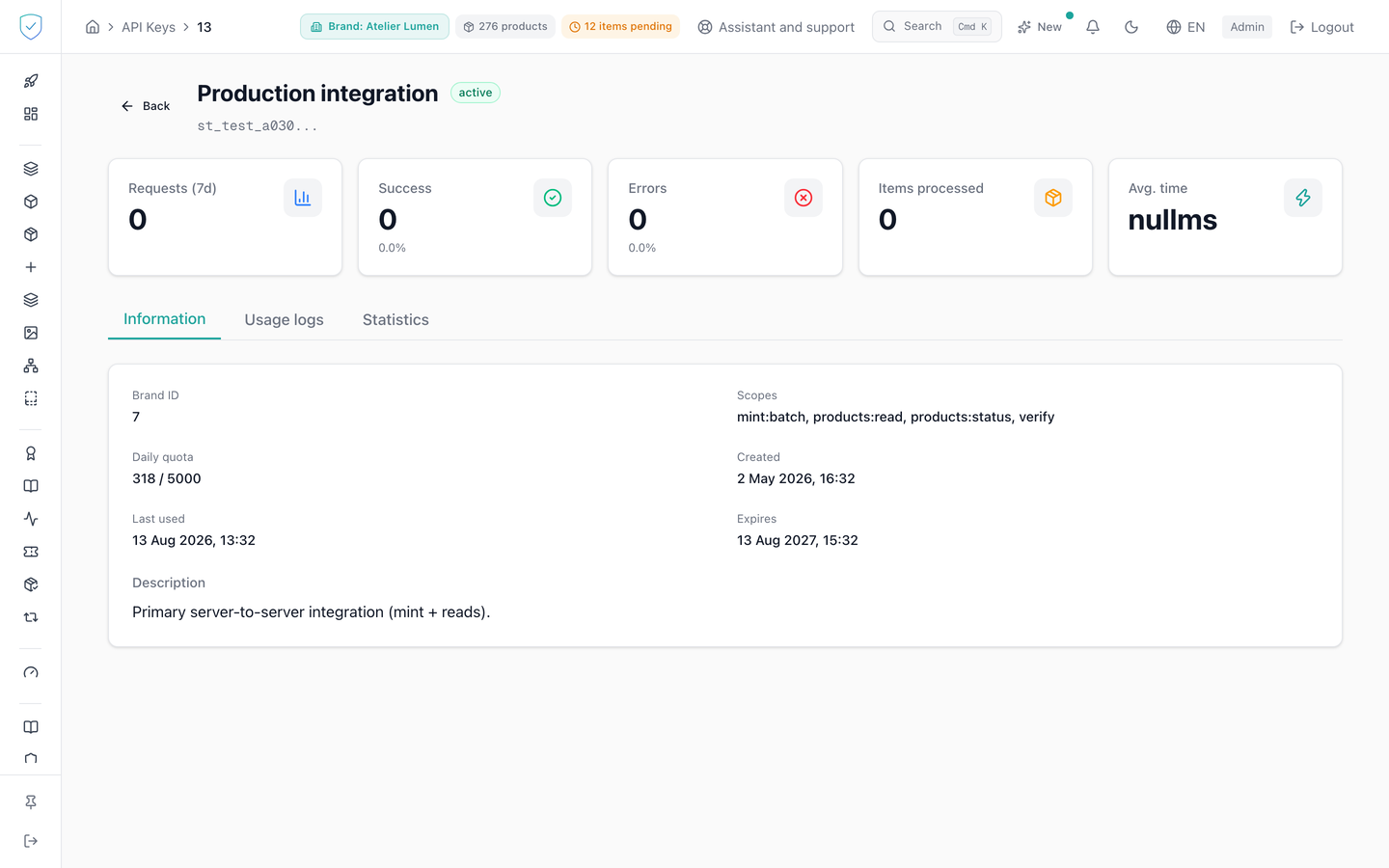
#What the screen shows
- In the header: the key name, its state badge (
active,revokedorexpired) and the start of the key followed by an ellipsis. - A row of 5 counters: "Requests (7d)", "Success", "Errors", "Items processed", "Avg. time". Success and errors also carry their share as a percentage.
- Three tabs: "Information", "Usage logs", "Statistics".
- The "Information" tab: "Brand ID", "Scopes", "Daily quota" shown as the day's consumption over the allowed quota, "Created", "Last used", "Expires", and the description if one was filled in. A reseller key also shows a "Reseller key" line, a reminder that it also acts for the client brands of the contract, on every partner API route: catalog, passport display, minting, sale declarations and webhooks.
- The "Usage logs" tab: one row per call, with the method and the path called, a badge, the response code, the timestamp, the item count, the duration in milliseconds and the calling IP address. The error message appears under the row when there is one.
- The "Statistics" tab: "Total requests", "Success rate", "Error rate", "Average response time" and "Items processed".
#What you can do here
- Move from one tab to another. The three tabs are fed by a single load, clicking a tab starts nothing again.
- Go back to the key list through the "Back" button.
- The page is read-only. No button on it edits or revokes the key, revocation stays in the Developers tab.
#What controls access
- The counters and the "Statistics" tab cover a period fixed at 7 days by the screen. The server accepts 1 to 90 days, the page offers no way to change that value.
- The "Usage logs" tab asks for the 50 most recent calls, newest first, while the server accepts 500 per call.
- A call counts as a success when its response code sits between 200 and 299, and as an error from 400 upwards. In the list, the badge stays green below 400.
- "Daily quota" shows "Unlimited" when no quota is set on the key.
- "Last used" and "Expires" show "Never" while the date is missing.
- The screen sits behind the API keys plan gate: a brand whose plan does not carry
api_accesscannot open it and is offered an upgrade. This is not what protects the data, the server decides on its own, and a brand withoutapi_accesscannot create any key so has none to show.
#What the screen refuses
- The key secret is never shown again here. The page only shows the start of the key.
- With no call recorded: "No usage logs for this API key".
- With no statistics: "No statistics available".
- A key that does not belong to a brand within your scope shows no data.
- A failed load does not wait forever: the screen shows "An error occurred" and a button to try again.
Was this page helpful?
Your answer opens a pre-filled email in your mail app, addressed to contact@sealtrust.io. You read it over before sending it.